
Adobe Podcast
Upgrade your audio with powerful web-based enhancements and tools.
Watch Adobe Podcast in Action
Key Takeaways
- What it is
- Upgrade your audio with powerful web-based enhancements and tools.
- Pricing
- Freemium
- Best for
- AI-Powered Audio Enhancement
- Seamless Web-Based Editing
- Speech-to-Text Transcription
- Rating
- 4.5/5
What is Adobe Podcast?
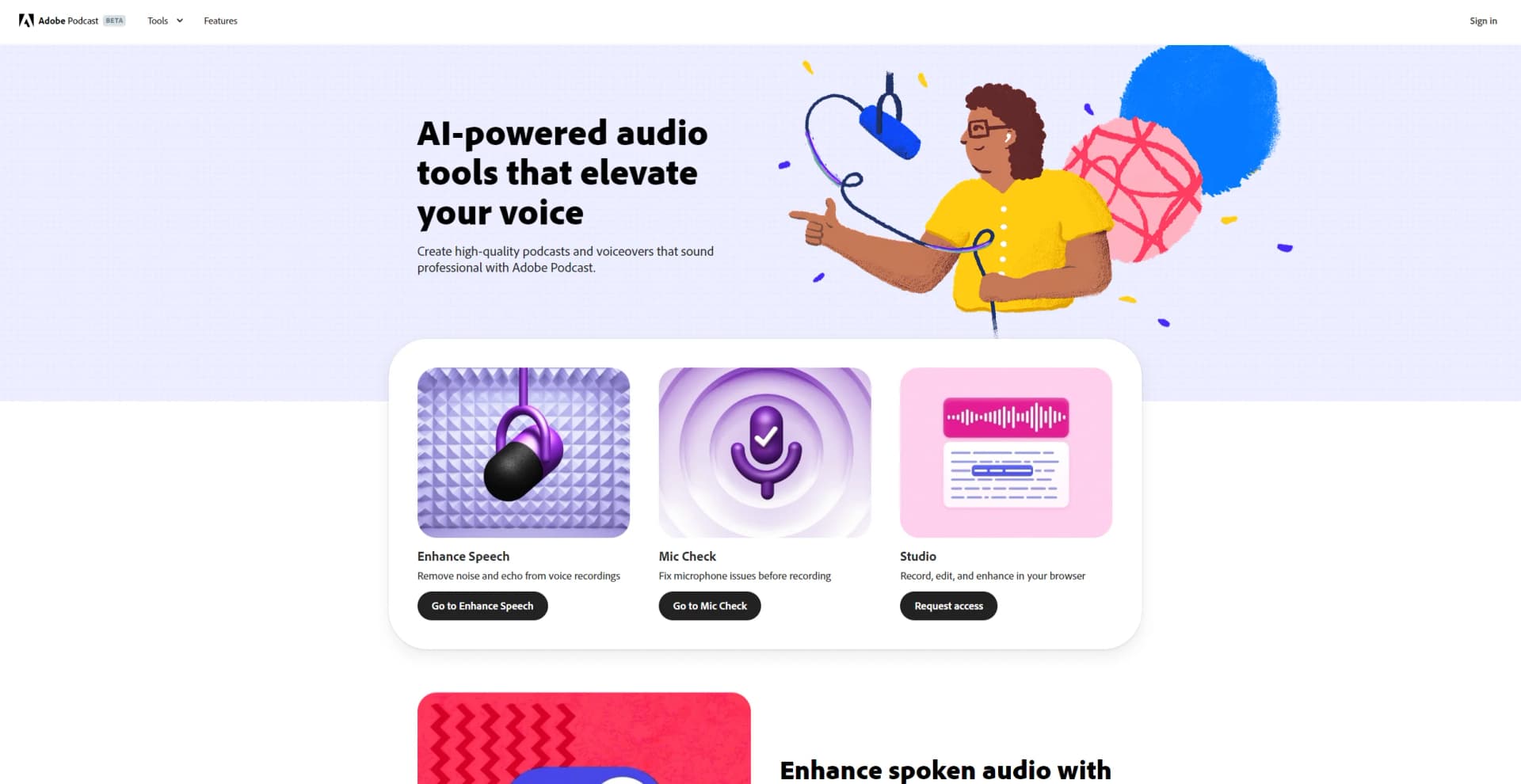
Adobe Podcast is a cutting-edge AI tool designed to revolutionize audio production. This web-based platform simplifies the process of recording and editing audio, making it accessible and efficient for creators of all levels. Whether you're a seasoned podcaster or a beginner, Adobe Podcast offers intuitive features to enhance your audio storytelling, all powered by advanced AI technology.
Adobe Podcast stands out with its seamless integration of AI technology into audio production, offering unmatched ease of use and efficiency. Its ability to enhance audio quality automatically and provide real-time collaboration options sets it apart, making it a game-changer for content creators seeking to streamline their workflow.
Adobe Podcast offers an innovative solution for audio creators, combining AI-driven features with a user-friendly interface to deliver high-quality audio production. Its web-based platform makes professional audio editing accessible to everyone, from podcasters to businesses, ensuring that your content stands out in clarity and quality. Whether you're looking to save time, enhance your audio, or collaborate seamlessly, Adobe Podcast is a tool worth exploring.
Who is Using Adobe Podcast?
Podcasters
Leveraging its AI capabilities to produce high-quality episodes efficiently.
Content Creators
Utilizing the tool for creating engaging audio content across various platforms.
Educators
Employing Adobe Podcast to enhance online courses with clear and professional audio.
Businesses
Using the platform for creating polished presentations and webinars.
Uncommon Use Cases
Adopted by journalists for quick and accurate audio transcription; Employed by language tutors to create immersive audio lessons.
Key Features
Rating Breakdown
Pricing Plans
Free Tier
Free
- Offers a limited version of Adobe Podcast with basic features to get started
Which Adobe Podcast plan should you pick?
Start with the Free plan to test recording, transcription, editing, and basic enhancement; upgrade to Premium when you need longer files, larger uploads, bulk processing, adjustable enhancement, unlimited downloads, or separate original tracks.
Free plan
Good for beginners and occasional creators who need basic recording, transcription, text-based editing, and limited audio enhancement.
Premium plan
Good for podcasters and content creators who need larger files, longer projects, bulk enhancement, adjustable controls, unlimited Studio downloads, and separate speaker tracks.
Adobe Podcast Use Cases
Record a podcast
Record solo or invite remote guests into Studio for multitrack recording.
Outcome: Capture high-quality audio and video with separate participant tracks.
Clean up spoken audio
Upload a recording and apply Enhance Speech to reduce noise, echo, and background distractions.
Outcome: Produce clearer, more studio-like dialogue.
Edit from a transcript
Transcribe audio or video, then cut, copy, and paste words in the interactive transcript.
Outcome: Tighten content without waveform-based editing.
Create social clips
Select transcript passages and export audio clips, audiograms, or video clips.
Outcome: Repurpose long recordings into shareable short-form content.
Remove background music
Upload mixed audio or video and separate speech, music, and ambience.
Outcome: Lower or remove unwanted music without original project files.
Workflow Ideas with Adobe Podcast
Produce a remote interview
- 1Create a Studio project
- 2Invite guests by link or email
- 3Record separate participant tracks
- 4Edit the transcript and export the finished episode
Turn an episode into social content
- 1Open the recorded project
- 2Select a strong passage in the transcript
- 3Export an audio clip, audiogram, or video clip
- 4Share the exported content on social platforms
Clean and publish an episode
- 1Upload or record the episode
- 2Apply Enhance Speech and edit the transcript
- 3Add royalty-free or custom music
- 4Export MP3 or WAV and upload it to a separate hosting platform
How Adobe Podcast fits into your stack
Browser
Adobe Podcast is a browser-based workspace for recording solo or with remote guests, transcribing audio and video, editing by transcript, enhancing speech, and exporting media.
Docs and writing
Its transcript editor treats audio and video like a document: users can cut, copy, paste, and delete transcript text to edit the corresponding media.
Knowledge and files
Users upload audio and video files for transcription, enhancement, editing, captions, audiograms, and export. Transcript outputs can be downloaded as PDF, DOCX, or text.
Automation and APIs
Adobe Podcast supports automatic bulk processing queues for uploaded files, but its official documentation does not describe a public Adobe Podcast API or cross-tool workflow automation.
Pros
- +User-Friendly Interface: The intuitive design makes it easy for users of all skill levels to create and edit audio content.
- +Time-Saving Automation: AI-driven features streamline the editing process, significantly reducing the time needed to produce high-quality audio.
- +High-Quality Output: Delivers professional-grade audio enhancement that rivals traditional studio setups.
- +Versatile Functionality: Suitable for a wide range of audio projects, from podcasts to voiceovers and more.
Cons
- −Limited Offline Capabilities: As a web-based tool, Adobe Podcast requires an internet connection for full functionality.
- −Subscription Costs: May be considered expensive for hobbyists or small creators without a dedicated budget for audio tools.
Limitations & when to consider alternatives
Known limitations
- Free-plan processing limits. The Free plan limits Enhance Speech to 30-minute files, 500 MB, and one hour per day.
- Free-plan Studio limits. Free Studio projects are limited to 30 minutes, with downloads capped at two projects per day.
- Remote recording is desktop Chrome-only. Remote recording is supported only in Google Chrome on desktop and cannot be joined from a phone or tablet.
- Transcription language coverage. The documented Studio transcription languages are limited to the supported language list, including English, French, German, Italian, Portuguese, Spanish, and Hindi.
- Podcast distribution is external. Adobe Podcast exports content but requires a separate hosting platform and podcast-directory submission process.
Look elsewhere when
- You need native mobile recording or remote sessions on a phone or tablet.
- You need a downloadable desktop editor instead of a browser-based tool.
- Your podcast workflow needs built-in hosting and directory distribution.
- You need a public developer API for programmatic processing.
How to Use Adobe Podcast
- 1
Create or open a Studio project
Start a new project to record solo or with guests, or upload an existing audio or video file.
- 2
Check your microphone
Use Mic Check to identify microphone placement, gain, background noise, and echo issues before recording.
- 3
Record or upload media
Record locally with guests or upload existing files for transcription and editing.
- 4
Edit from the transcript
Delete, cut, copy, paste, or correct transcript text to make matching audio or video edits.
- 5
Enhance and add music
Apply Enhance Speech, add royalty-free or custom music, and adjust the project’s sound.
- 6
Export and distribute
Download audio, video, clips, audiograms, or transcripts, then upload the finished episode to a separate hosting platform.
Who is Adobe Podcast For?
Podcasters
Record solo or with guests, edit from transcripts, enhance audio, add music, and export episodes.
Storytellers
Use browser-based recording, text-based editing, and audio enhancement to shape spoken stories.
Content creators
Create short-form clips, audiograms, captions, and visual assets for social platforms.
Affiliate creators
Repurpose podcast or interview content into short-form clips and promotional media.
Educators and lecturers
Transcribe lectures, correct transcripts, edit spoken content, and export accessible text formats.
Frequently Asked Questions
What can Adobe Podcast do?
Adobe Podcast records, transcribes, edits, enhances, and exports audio and video directly in the browser.
Is Adobe Podcast free?
Yes. The Free plan includes limited Enhance Speech and Studio usage; Premium raises duration, file-size, processing, and download limits.
Can Adobe Podcast record remote guests?
Yes. Studio lets you create a project, invite guests by link or email, and record separate participant tracks.
Which browsers support remote recording?
Remote recording is currently supported on Google Chrome on desktop.
What languages does transcription support?
Documented transcription languages include English, French, German, Italian, Portuguese, Spanish, and Hindi.
Does Adobe Podcast host and distribute podcasts?
No. Adobe Podcast helps create and export episodes; Adobe’s publishing guide says you still need a hosting platform and directory distribution.
Community reviews
Be the first to share your experience.
Sign in to leave a review for Adobe Podcast.
Adobe Podcast Alternatives
Looking for alternatives to Adobe Podcast? Here are similar tools in the same category:
Learn to Master Adobe Podcast
With Skill Leap courses
Get in-depth training on Adobe Podcast and 50+ other AI tools with our expert-led video courses.
Start 7-Day Free Trial