Canva Text to Image
Transform text into stunning visuals effortlessly with AI-powered creativity.
Watch Canva Text to Image in Action
Key Takeaways
- What it is
- Transform text into stunning visuals effortlessly with AI-powered creativity.
- Best for
- AI-Powered Visual Generation
- Integration with Canva Design Platform
- Customization Options
- Rating
- 4.5/5
What is Canva Text to Image?
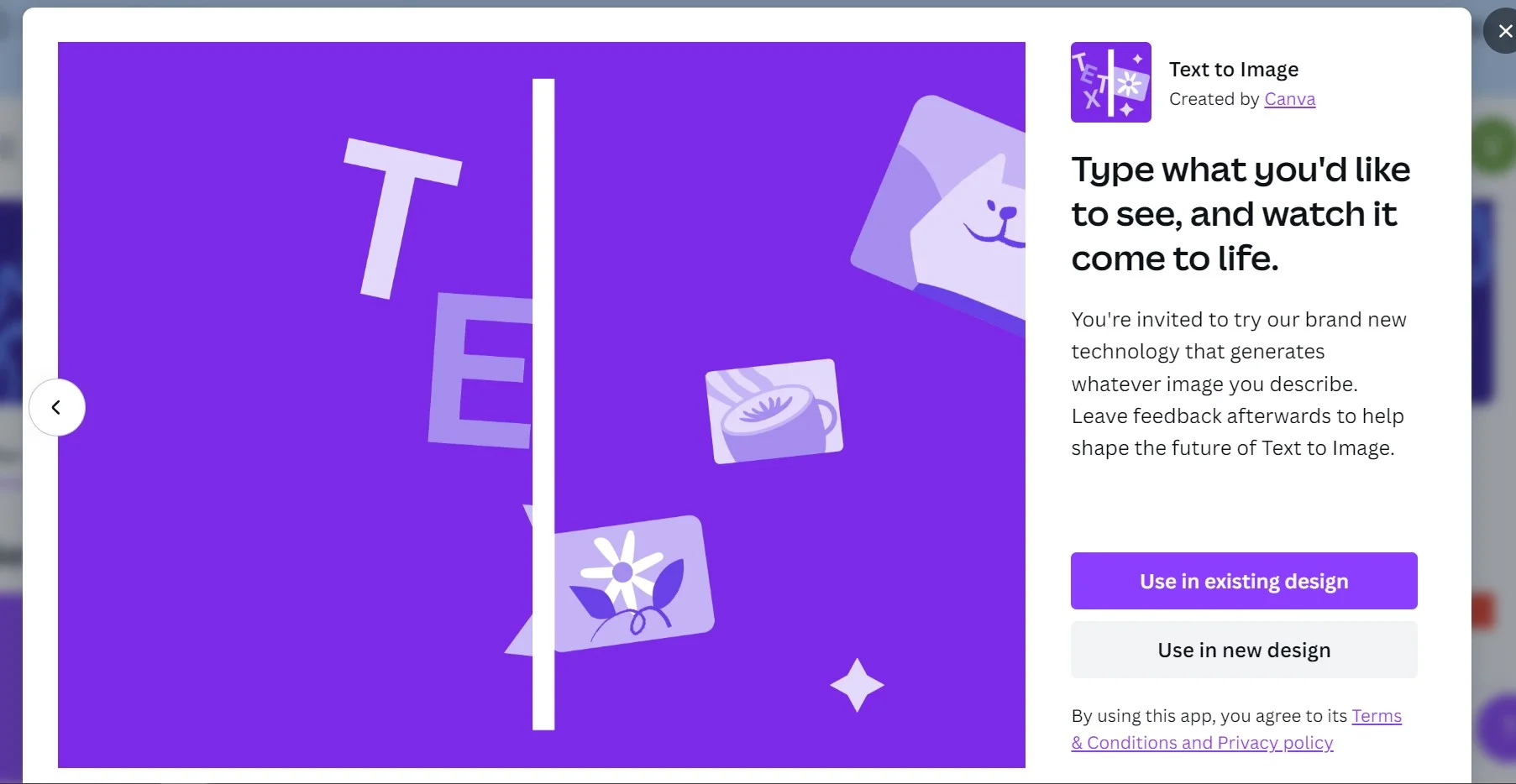
Canva Text-to-Image is an innovative tool designed to transform words into compelling visuals. It leverages advanced AI to interpret text input and create images that represent the described concepts. Aimed at marketers, designers, educators, and anyone in need of quick visual content, Canva Text-to-Image streamlines the graphic creation process in a user-friendly and intuitive manner.
Canva Text-to-Image distinguishes itself with its seamless integration into the Canva design platform, enhancing the creative process with AI-driven imagery. It stands out by allowing users to almost instantly visualize text descriptions, streamlining the workflow from concept to final design.
Canva Text-to-Image excels in providing a unique solution for rapid visual content creation, making it an indispensable tool for individuals and businesses looking to enhance their digital presence. Its ability to instantly turn text into images offers a significant advantage for those needing to produce high-quality graphics consistently and efficiently.
Who is Using Canva Text to Image?
Content Creators
For generating unique visuals to accompany blog posts and articles.
Social Media Marketers
To create eye-catching graphics for social media campaigns.
Small Business Owners
For designing promotional materials without the need for a professional designer.
Educators
To produce visual aids that can help illustrate complex concepts.
Uncommon Use Cases
Used by authors to visualize scenes or characters for their stories; adopted by event planners to quickly mockup theme concepts for clients.
Key Features
Rating Breakdown
Pricing Plans
Free Version
- Canva offers a basic version of Text-to-Image that's included with the free Canva account
Subscription Plans
- Additional features and capabilities are available through Canva Pro and Canva for Enterprise plans
Which Canva Text to Image plan should you pick?
Start with Free to test Text to Image at no cost; upgrade to Pro for higher AI usage and premium Canva features.
Free
Good for individuals who need basic Canva design tools and limited AI image generation at no cost.
Pro
Good for solo creators who need premium design features and substantially more AI usage.
Business
Good for individuals and small teams who need collaboration, brand management, and higher AI access.
Enterprise
Good for larger organizations that need SSO, advanced security controls, governance, and custom integrations.
Canva Text to Image Use Cases
Social media content
Generate custom visuals for social media posts.
Outcome: Faster creation of distinctive social graphics.
Presentations
Create conceptual images and illustrations for presentation designs.
Outcome: More tailored presentation visuals.
Business flyers
Generate imagery for promotional flyers and marketing materials.
Outcome: Custom visuals without searching stock libraries.
Logo concepts
Use generated images to explore logo and brand ideas.
Outcome: More options during early concept development.
Classroom resources
Create personalized visuals and animated educational materials for students.
Outcome: More engaging and adaptable learning experiences.
Workflow Ideas with Canva Text to Image
Create a social post visual
- 1Open Text to Image from Canva’s App Marketplace or editor Apps tab.
- 2Describe the subject, style, lighting, colors, and composition.
- 3Generate, review, and add the preferred image to a social media design.
Develop a presentation concept
- 1Start or open a Canva presentation.
- 2Enter a detailed prompt describing the desired concept image.
- 3Generate alternatives and place the selected result into the presentation.
Create a reference-based image
- 1Open Magic Media’s Images tab.
- 2Upload a reference image and describe the desired result.
- 3Choose a style and layout, generate images, and add one to the design.
How Canva Text to Image fits into your stack
Canva Platform
Fully integrated within the Canva design suite.
Social Media Platforms
Easy export options to various social media channels.
Collaboration Tools
Facilitates team collaboration with shared access to designs.
Extensive Asset Library
Access to Canva's vast library of fonts, templates, and design elements.
Pros
- +Enhanced Creativity: Sparks new design ideas with AI-generated imagery that can be used as a starting point.
- +Time-Saving: Quickly produces images, reducing the time spent on conceptualization and design.
- +Ease of Use: Intuitive interface requires no advanced design skills, making it accessible to a broader audience.
- +Cost-Effective: Can help reduce expenses related to graphic design and content creation.
Cons
- −Predictability Limitations: While innovative, the AI may not always perfectly capture the nuance of the text input.
- −Design Diversity: There may be limitations in the variety of styles the AI can produce compared to a human designer.
- −Learning Curve: Users may need time to learn how to best input text to achieve the desired visual outcomes.
Limitations & when to consider alternatives
Known limitations
- Daily generation limits. The Text to Image guide documents a limit of up to 100 images daily for Free and Pro accounts.
- Similar outputs may occur. Other people can use the same prompts and may receive similar images.
- Copyright is not guaranteed. Canva does not claim copyright over outputs, and users may not own exclusive rights to generated images.
- Rights may be required for recognizable content. Images depicting recognizable characters or brands may require permission from the rights holder.
- AI usage allowances vary by plan. Free users may need to upgrade after reaching their monthly AI credit limit.
Look elsewhere when
- You need a dedicated native Text to Image mobile app.
- You need a dedicated browser extension.
How to Use Canva Text to Image
- 1
Canva provides a host of tutorials and guides to help users get the most out of Text-to-Image, available through their online design school and help center.
Who is Canva Text to Image For?
Marketers
Create visuals for social media posts, business flyers, logos, and other marketing content.
Teachers and educators
Use Text to Image to create imaginative classroom visuals and personalized learning materials.
Small business owners
Generate visual content without needing a separate design or marketing team.
Content creators
Turn ideas into illustrations and images for social platforms and creative projects.
Designers and creative teams
Brainstorm concepts and create visuals directly inside Canva designs.
Frequently Asked Questions
How do I use Canva Text to Image?
Open Text to Image from Canva’s App Marketplace or the Apps tab in the editor, enter a description, and generate images.
How many images can I generate for free?
Canva’s Text to Image guide says Free and Pro accounts can generate up to 100 images daily.
Can I use generated images in Canva designs?
Generated images can be added to Canva designs for print, social media, presentations, whiteboards, and visual documents.
Can I adjust the generated results?
You can revise the prompt or ask the app to generate more images after reviewing the results.
Do I own the copyright to generated images?
Canva does not claim copyright over Text to Image outputs, but you may not own exclusive rights and similar outputs may exist.
Can I generate images from a reference image?
Magic Media allows users to upload a reference image alongside their text prompt.
Community reviews
Be the first to share your experience.
Sign in to leave a review for Canva Text to Image.
Canva Text to Image Alternatives
Looking for alternatives to Canva Text to Image? Here are similar tools in the same category:
Learn to Master Canva Text to Image
With Skill Leap courses
Get in-depth training on Canva Text to Image and 50+ other AI tools with our expert-led video courses.
Start 7-Day Free Trial