Captions
AI-powered studio simplifies video creation, editing, and subtitling.
Key Takeaways
- What it is
- AI-powered studio simplifies video creation, editing, and subtitling.
- Pricing
- Freemium
- Best for
- AI Avatar Generator
- AI Video Editor
- AI Ad Generator
- Rating
- 4.5/5
What is Captions?
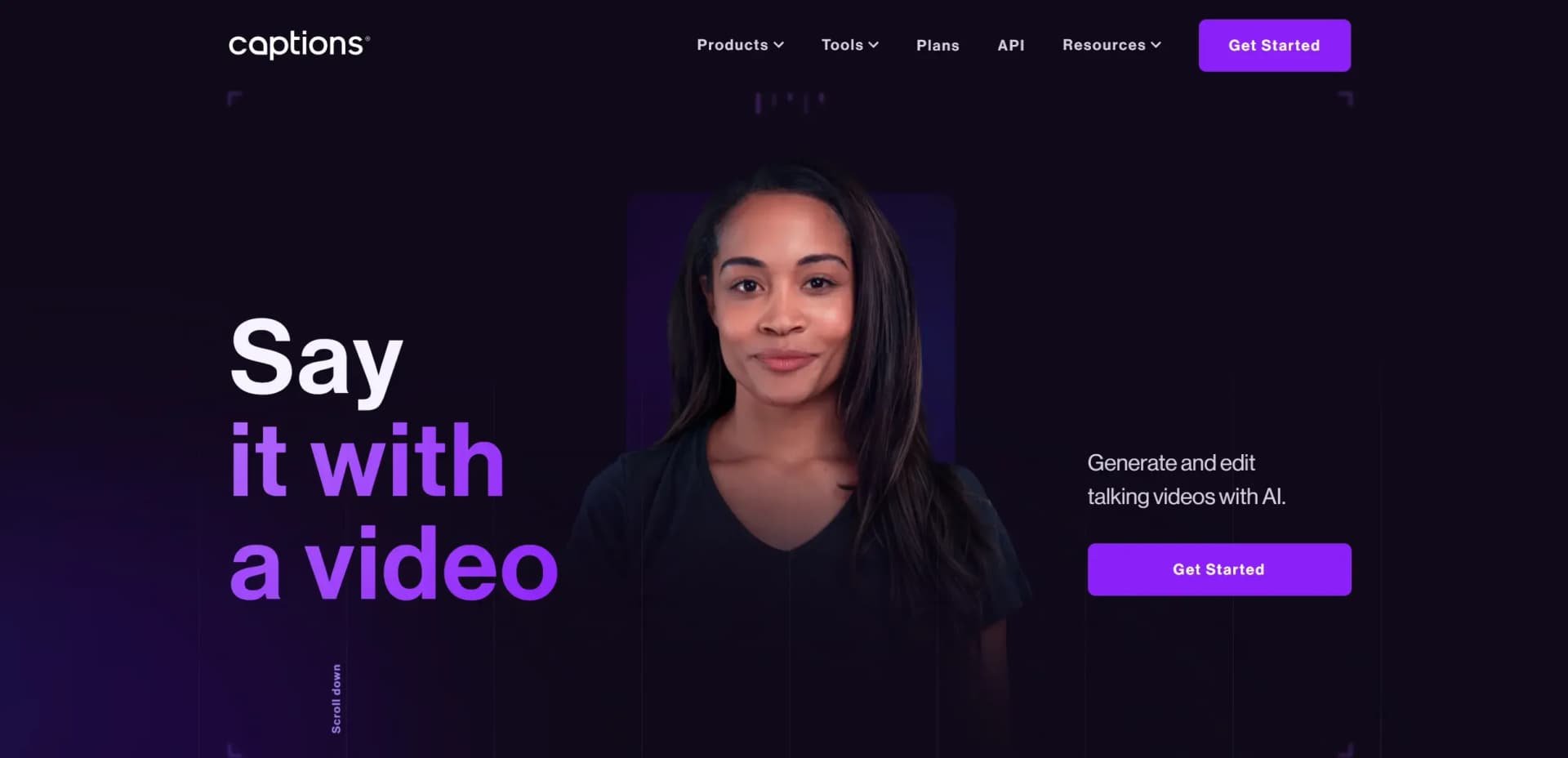
Captions is an innovative AI-powered creative studio that transforms how users create and edit videos. Found on Captions, this tool is designed to streamline video production, making it accessible and efficient for creators across various industries. With a suite of AI-driven features, Captions simplifies complex tasks like editing, subtitling, and even generating ads, positioning itself as an essential tool for professionals and enthusiasts looking to enhance their video content effortlessly.
Captions stands out with its comprehensive suite of AI-powered tools, such as the AI Avatar Generator and AI Video Editor, which collectively redefine content creation by automating traditionally time-consuming tasks. Its unique ability to translate and synchronize lip movements in multiple languages sets it apart, making it a game-changer for creators seeking global engagement.
Captions is transforming the landscape of video creation with its AI-driven capabilities, making it an invaluable tool for anyone looking to produce high-quality, engaging content efficiently. From its intuitive interface to its innovative features, Captions empowers users to push the boundaries of creativity and storytelling, making it a must-have for modern content creators.
Who is Using Captions?
Content Creators
Utilizing Captions for streamlined video production and editing.
Marketing Professionals
Employing the tool to create compelling video ads and promotional content.
Educators
Leveraging video translation and subtitling features for educational materials.
Social Media Influencers
Using AI-driven editing tools to enhance the quality and engagement of social media posts.
Uncommon Use Cases
Adopted by non-profits for multilingual advocacy videos; used by virtual event organizers to create engaging event recaps.
Key Features
Rating Breakdown
Pricing Plans
Free Tier
Free
- Access basic features with a limited free trial to explore the tool's capabilities
Pro Tier
- Offering full access to all features and premium support
Which Captions plan should you pick?
Start with Free to test basic editing; upgrade to Max for regular generative AI production, Scale for higher volume, or Enterprise for custom seats and support.
Free
Good for users who need basic trimming, transitions, captions, and limited media assets.
Max
Good for creators and marketers who need generative video, AI editing, avatars, and 500 monthly credits.
Scale
Good for higher-volume production teams that need 1,400 monthly credits and faster generation.
Enterprise
Good for organizations needing custom seats, account management, onboarding, governance, and enterprise support.
Captions Use Cases
AI video ads
Generate UGC-style ads from a product URL or script using AI avatars.
Outcome: Finished ad variations ready for testing.
Long video to short clips
Upload webinars, podcasts, interviews, or sermons and extract their strongest moments.
Outcome: Multiple short-form clips from one recording.
Script-to-video content
Provide a script or prompt, select an AI avatar, choose a language, and generate a talking-head video.
Outcome: A finished video without filming.
Caption and translate videos
Transcribe footage, style captions, and dub or translate the video into supported languages.
Outcome: More accessible and internationally usable content.
Batch weekly content
Record several clips in one session and apply repeatable AI Edit styles to each.
Outcome: A week of polished social videos in one batch.
Workflow Ideas with Captions
Raw footage to finished short
- 1Import or record footage
- 2Choose an AI Edit style and language
- 3Review the generated captions, B-roll, music, and motion graphics
- 4Export the finished video
Script to avatar video
- 1Open AI Creator and write, paste, or generate a script
- 2Choose an avatar and language
- 3Generate the video
- 4Edit with captions, B-roll, music, or Chat to Edit, then export
Weekly batch production
- 1Write several scripts before filming
- 2Record clips with the camera and teleprompter
- 3Apply the same AI Edit style to each clip
- 4Review, export, and schedule the videos
How Captions fits into your stack
Browser
Captions runs as a web video editor where users upload footage, edit videos, generate captions, and export content.
Mobile app
Native iOS and Android apps support recording, importing footage, captioning, translating, dubbing, and editing videos.
Team workspace
Teams can invite members, assign Admin or Member roles, and create, edit, and share projects within a team.
Automation and APIs
The Captions API provides API keys, video-generation endpoints, translation, AI Ads, AI Twin, and webhook support.
Pros
- +Free plan available
- +Native iOS and Android apps
- +100+ caption and translation languages
- +Programmatic API with API keys and endpoints
- +Team roles and shared project collaboration
Cons
- −Initial Learning Curve: Some advanced features may require time to fully master.
- −Limited Third-Party Integration: Currently, integration with some external platforms is limited.
- −Subscription Cost: Some users may find the premium pricing a bit high for occasional use.
Limitations & when to consider alternatives
Known limitations
- AI usage uses credits. AI generations and edits consume credits; free users receive a one-time allotment, while paid plans have monthly allowances.
- Upload duration limits. Uploaded files are limited to 60 minutes on iOS, Android, and Web.
- Some features vary by device. The help center documents differences between iOS, Android, Web, and Desktop feature availability.
- AI Edit works best with clean single-speaker footage. Multiple speakers, background music, and heavy ambient noise can reduce AI Edit quality.
- Projects may be device-local in legacy Desktop. The legacy Desktop app stores projects locally on the device and browser and does not sync them across devices.
Look elsewhere when
- You need a browser extension rather than a web editor.
- You need fine-tuning or custom model training.
- You need documented AES, TLS, or at-rest encryption controls.
- You need programming-code generation or editing.
How to Use Captions
- 1
Create an account
Sign up on Web or download the iOS or Android app to begin creating projects.
- 2
Start with footage or a script
Upload video, audio, or images, record with the camera and teleprompter, or open AI Creator for script-to-video generation.
- 3
Apply AI editing
Use AI Edit to automatically add captions, B-roll, music, sound effects, and motion graphics.
- 4
Customize the result
Correct captions, replace media, adjust styles, use Chat to Edit, or make timeline edits.
- 5
Translate or dub
Choose a supported language to create translated captions or dubbed versions of the video.
- 6
Export and publish
Review the finished video, select the desired resolution, and export it for social platforms or other uses.
Who is Captions For?
Creators
Create, caption, translate, and edit short-form videos with AI.
Marketers
Produce ads, AI UGC, product demos, and multilingual marketing videos.
Entrepreneurs and small businesses
Publish professional videos without an editor, crew, or extensive production time.
Educators and podcasters
Turn recordings and long-form content into captioned clips and tutorials.
Real estate professionals
Create polished listing tours, property explainers, and market-update videos.
Frequently Asked Questions
Is there a free version of Captions?
Yes. The free plan includes basic tools such as trimming, transitions, captions, and selected media-library assets.
Which platforms support Captions?
Captions is available on iOS, Android, Web, and Mac.
Can I switch plans?
You can upgrade or downgrade at any time; upgrades apply immediately and downgrades take effect at the end of the billing cycle.
Do Captions credits expire?
Eligible paid-plan credits can roll over, with balances capped at up to three times the monthly allowance.
Can I use Captions videos commercially?
Videos created with AI Creator and AI Ads are documented as available for commercial use.
What file types can I upload?
Supported uploads include MP4, MOV, M4V, MP3, M4A, AAC, and WAV, plus images.
Community reviews
Be the first to share your experience.
Sign in to leave a review for Captions.
Captions Alternatives
Looking for alternatives to Captions? Here are similar tools in the same category:
Learn to Master Captions
With Skill Leap courses
Get in-depth training on Captions and 50+ other AI tools with our expert-led video courses.
Start 7-Day Free Trial