
invideo AI
Effortlessly transform text into dynamic, full-length videos.
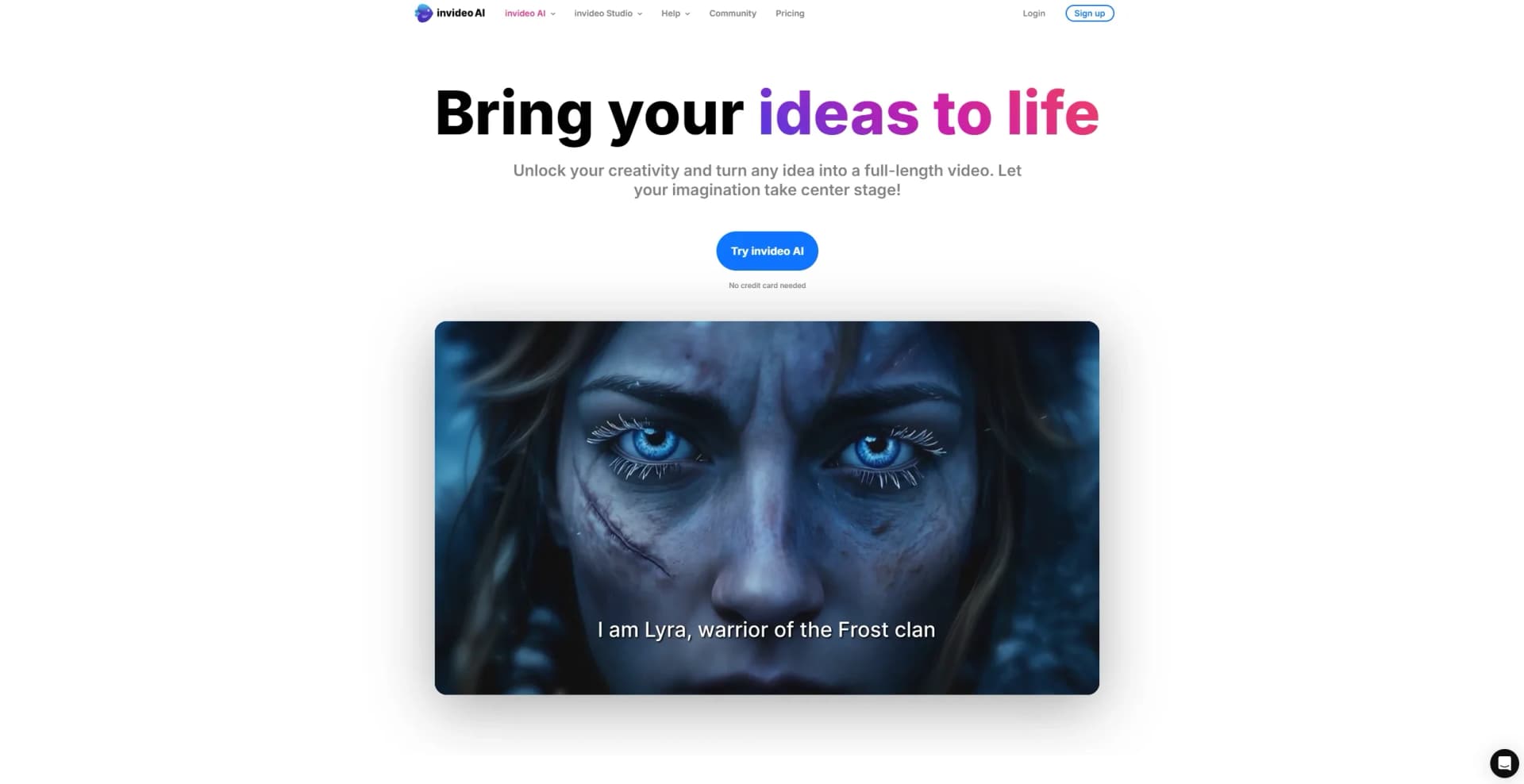
Watch invideo AI in Action
Key Takeaways
- What it is
- Effortlessly transform text into dynamic, full-length videos.
- Pricing
- Freemium · $35 per month. Unlock 50 minutes of AI generation monthly · $60 per month · $120 per month
- Best for
- AI Video Generator
- Stock Media Library
- AI Voice Cloning
- Rating
- 4.8/5
What is invideo AI?
invideo AI is a cutting-edge video creation platform that revolutionizes the way videos are made by leveraging artificial intelligence. Designed to cater to individuals and professionals across various industries, invideo AI simplifies the video production process, allowing users to transform their ideas into full-length videos effortlessly. Whether you're a seasoned video editor or a beginner, Invideo AI offers a seamless experience to bring your creative visions to life without the need for technical skills.
invideo AI stands out with its ability to transform simple text inputs into dynamic, full-length videos. This unique feature allows users to create high-quality content quickly and efficiently, which is particularly beneficial for those with limited time and resources. The platform's vast stock media library and AI voice cloning capabilities further enhance its appeal, providing comprehensive tools for personalized video creation.
invideo AI offers a revolutionary approach to video creation, making it accessible and efficient for users across various sectors. With its AI-driven features, extensive media library, and user-friendly interface, this tool is not just about simplifying video production but also about empowering users to unleash their creativity. Whether you're crafting a marketing campaign or producing educational content, invideo AI promises a seamless experience that adapts to your unique needs.
Who is Using invideo AI?
Content Creators
Utilizing the tool to produce high-quality videos for YouTube and other social media platforms.
Marketing Professionals
Employing invideo AI for crafting engaging marketing campaigns and promotional content.
Educators
Leveraging the platform to create instructional videos and educational materials.
Small Business Owners
Using the tool to develop promotional videos to reach new audiences.
Uncommon Use Cases
Adopted by podcasters for creating video versions of their audio content; Used by event planners for crafting event highlight reels.
Key Features
Rating Breakdown
Pricing Plans
Free
Free
- 4 weekly exports with watermark
- 10 GB storage
- Access to over 2.5M standard media assets—great for testing the basics
Plus
$35 per month. Unlock 50 minutes of AI generation monthly
- 80 iStock clips
- 60-second generative credits
- 100 GB storage
- 2 voice clones
- Unlimited exports for one user
Max
$60 per month
- Includes 200 AI generation minutes, 320 iStock assets, 60s generative credits, 400 GB storage, unlimited exports, and up to 5 voice clones for one user
Generative
$120 per month
- Includes 200 AI video minutes, 320 iStock clips, 15-minute generative credits, 400 GB storage, 5 voice clones, and full export access—ideal for high-volume creators
Which invideo AI plan should you pick?
Start with Plus for exploration, then upgrade to Max or Generative as credit usage and concurrency increase; choose Team or Enterprise for seats, SSO, and administration.
Free
Good for testing the platform with limited credits and watermarked exports.
Plus
Good for exploring AI models, workflows, avatars, and moderate video production.
Max
Good for occasional creators who need more credits, storage, avatars, and concurrency.
Generative
Good for daily creators who need substantially more credits and concurrency.
Elite
Good for power creators producing high-volume content with the largest individual quotas.
invideo AI Use Cases
Explainer videos
Turn a concept or script into a narrated video with scenes, visuals, music, and subtitles.
Outcome: A publishable explanatory video.
UGC advertisements
Create short-form ads using human actors, virtual actors, AI twins, or generative media.
Outcome: Social-ready advertising creative.
AI filmmaking
Develop production decks, storyboards, animatics, consistent characters, and multi-shot scenes.
Outcome: A structured AI film production.
SaaS tutorials
Upload screen recordings and add generated scripts, voiceovers, callouts, arrows, and zooms.
Outcome: A step-by-step product or integration tutorial.
Multilingual video production
Generate videos and avatar presentations in supported languages by specifying the desired language.
Outcome: Localized video content.
Workflow Ideas with invideo AI
Script to finished explainer
- 1Select Use my script or describe the concept
- 2Choose language, media type, music, and subtitle preferences
- 3Generate, review, refine with text prompts, and download
Storyboard to video scene
- 1Open Agents & Models and select the storyboard tool
- 2Describe the scene and add reference images
- 3Extract a frame and send it into video generation
Screen recording to SaaS tutorial
- 1Upload a silent screen recording
- 2Select a How-To Video workflow and provide the steps
- 3Add voiceover, text callouts, circles, arrows, or zoom effects
How invideo AI fits into your stack
Browser
Invideo AI and its timeline editor run in the browser at ai.invideo.io, where users prompt agents, upload media, edit timelines, and export videos.
Automation and APIs
Invideo provides an MCP server that connects its capabilities to Claude, Claude Desktop, Cursor, and Windsurf, allowing those assistants and tools to invoke invideo functionality.
Team chat and tickets
Invideo supports shared workspaces with multiple seats and invitations, enabling team members to collaborate on projects rather than passing files between users.
Pros
- +User-Friendly Interface: Intuitive design that accommodates all skill levels, eliminating the steep learning curve associated with traditional video editing tools.
- +Versatile Functionality: Supports a wide range of video creation needs, from social media posts to professional presentations.
- +Cost-Effective Solutions: Offers budget-friendly pricing plans with the option to use the tool for free, making it accessible for various user demographics.
- +24/7 Support: Provides round-the-clock human support to assist users throughout their video creation journey.
Cons
- −Limited Third-Party Integrations: Currently, the platform supports a limited number of third-party applications, which may restrict some collaborative efforts.
- −Initial Setup Time: While the tool is user-friendly, first-time users may require some time to explore and understand its full capabilities.
Limitations & when to consider alternatives
Known limitations
- Free-plan restrictions. The Free plan has limited credits and exports may include an invideo watermark.
- Credits do not roll over. Unused monthly credits expire rather than carrying into the next month.
- Upload size limit. Uploaded images and videos must not exceed 2GB per file.
- UGC ad duration. The UGC Ads workflow is designed for videos around one minute or less; longer 5- or 10-minute videos are unsupported.
- Some language subtitle gaps. Subtitles are not supported for several listed languages, including Hindi, Arabic, Urdu, Hebrew, Thai, and Farsi.
Look elsewhere when
- You need a native desktop installer
- You need programmatic API access
How to Use invideo AI
- 1
Open the prompt page
Start in Agent mode, which is selected by default for conversational video creation.
- 2
Describe the project
Enter a film, campaign, script, scene, or concept and provide audience, style, and tone context.
- 3
Choose a workflow or model
Use Autopilot for single-shot generation, or select Agents & Models for specific video, image, or audio models.
- 4
Add your assets
Upload images, videos, or audio through Add files, the Media panel, or Media Library.
- 5
Review and refine
Use the conversational agent or Magic Box to revise scripts, visuals, voiceovers, music, and scene details.
- 6
Export or share
Preview the result, download generated media, or set video visibility to private, unlisted, or public.
Who is invideo AI For?
Filmmakers
Create AI films, storyboards, animatics, and multi-shot productions with agent-assisted direction.
Marketing teams
Produce brand campaigns, explainers, product videos, and promotional content from prompts.
Meta ads teams
Create short-form performance and UGC advertising videos with actors, visuals, and voiceovers.
Agencies
Use shared workspaces, multiple seats, reusable media, and scalable credits for client production.
Editors and ad creators
Refine generated footage, replace media, change voiceovers, and make text-based edits.
Frequently Asked Questions
Can I use invideo AI for free?
Yes. The Free plan requires no card and provides limited credits, image generation, and social sharing.
What is a credit, and how is it charged?
Credits are used for video creation, generative models, and other AI features; downloading does not consume credits.
Can I generate videos in other languages?
Yes. Invideo supports more than 50 languages, with 11 listed as fully supported.
How can I upload images and videos?
Upload images, videos, or audio from the Media panel, Media Library, or Add files control. Images and videos can be up to 2GB.
How many team members can I have?
Plus, Max, and Generative are individual plans. Team supports 2 to 30 seats.
Can I download and use AI-generated media?
Yes. Generated media remains accessible after cancellation and can be downloaded from the project.
Community reviews
1 review from people who use invideo AI.
Sign in to leave a review for invideo AI.
cyan coral
invideo AI Alternatives
Looking for alternatives to invideo AI? Here are similar tools in the same category:
Learn to Master invideo AI
With Skill Leap courses
Get in-depth training on invideo AI and 50+ other AI tools with our expert-led video courses.
Start 7-Day Free Trial