
Lynote
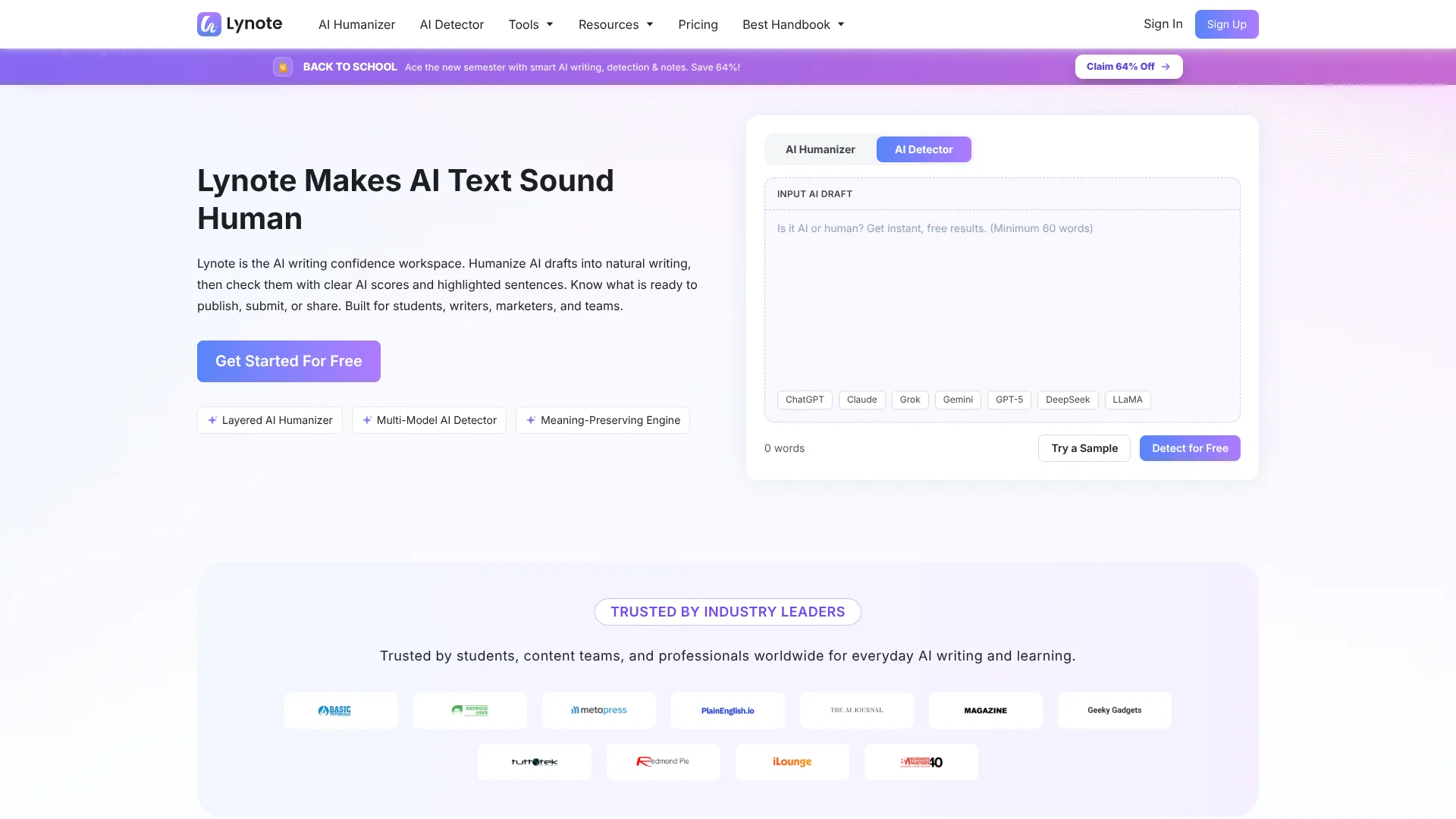
Rewrites AI drafts then rescans for AI.
Key Takeaways
- What it is
- Rewrites AI drafts then rescans for AI.
- Best for
- AI Humanizer
- Multi-Model AI Detector
- AI Notes Generator
Who is Using Lynote?
Students
Humanize essays and assignments, summarize lectures and readings, and create study materials.
SEO specialists
Refine blog posts, landing pages, product descriptions, and category copy while preserving keywords.
Educators
Review assignments and teaching materials for AI-writing signals and improve clarity.
Researchers
Process literature reviews, abstracts, PDFs, recordings, and other research sources into structured notes.
Professionals and teams
Polish proposals, reports, presentations, emails, and other AI-assisted business writing.
Key Features
Which Lynote plan should you pick?
Start with Free for occasional humanization, detection, transcription, and study workflows; upgrade to Pro when you need higher usage limits or advanced features such as Advanced Image Scan.
Free
Good for users who need core Lynote tools, free AI detection, basic image scans, and occasional document or media processing.
Pro
Good for users who need higher limits, longer detector inputs, advanced image analysis, and expanded paid-plan controls.
Lynote Use Cases
Humanize AI drafts
Paste or upload AI-generated writing and refine its structure, sentence variation, and tone.
Outcome: More natural, readable writing that preserves the original meaning.
Review student writing
Paste text or upload PDF, DOCX, or TXT assignments, then inspect AI, mixed, and human-written signals.
Outcome: A faster review process focused on highlighted passages.
Create study materials from videos
Generate transcripts, summaries, notes, and flashcards from lectures, YouTube videos, and other recordings.
Outcome: Long recordings become reviewable study resources.
Translate documents
Upload Word, PDF, Excel, or PowerPoint files for document translation.
Outcome: Translated document content without switching to a separate translation workflow.
Verify image authenticity
Upload photos, artwork, receipts, product images, or profile images for AI-generation and manipulation analysis.
Outcome: An AI probability score and additional visual or provenance signals.
Workflow Ideas with Lynote
AI draft review and refinement
- 1Paste or upload the AI-generated draft
- 2Run Lynote Humanizer to improve naturalness while preserving meaning
- 3Run AI Detector and review highlighted sentences before publishing or submitting
Lecture-to-study-kit workflow
- 1Generate a transcript from a YouTube video or recording
- 2Create an AI summary or organized notes
- 3Generate flashcards for review
Image authenticity review
- 1Upload a JPG, PNG, WebP, or other supported image
- 2Run Basic Scan or Advanced Scan
- 3Review the AI probability, metadata, provenance, and verdict
How Lynote fits into your stack
Browser
Lynote is primarily a browser-based workspace with no installation required; its Chrome extension adds detection, humanization, and YouTube workflows in-page.
Knowledge and files
Users upload PDFs, DOCX, PPTX, XLSX, audio, video, images, webpages, and YouTube links to generate notes, summaries, flashcards, and Q&A.
Docs and writing
The humanizer accepts pasted text or TXT, DOCX, and PDF files, then supports readability, purpose, and rewrite-intensity controls.
Study and review
Generated notes can be edited, searched, exported, shared, and converted into flashcards for active-recall workflows.
Pros
- +Free access available
- +No sign-up required for core humanizer and extension workflows
- +Supports 80+ or 100+ languages depending on feature
- +Accepts broad source formats including documents, images, audio, and video
- +Combines humanization, detection, transcription, notes, and study tools
Cons
- −Humanizer API is currently presented as an early-access waitlist
- −Subscription fees are non-refundable except where legally required
- −AI detection results are probabilistic and require human review
- −The product is browser-based rather than a dedicated desktop application
Limitations & when to consider alternatives
Known limitations
- Free detector text limit. The free detector supports up to 600 words in the text box; Pro supports up to 3,000 words per request.
- Image upload limit. The AI Image Detector supports JPG, JPEG, PNG, and WebP images up to 10 MB.
- Detector results are not proof. Lynote warns that AI-detection results should be treated as review signals rather than definitive proof of cheating or authorship.
- Browser-based access. The main tool catalog is designed to work directly in the browser and does not require installation.
- Chrome-specific extension. The documented transcript extension is installed through the Chrome Web Store and is designed for YouTube.
Look elsewhere when
- You need a native iOS or Android application.
- You need a downloadable Windows, macOS, or Linux desktop app.
- You need documented API access.
- You need shared team workspaces with roles and invitations.
How to Use Lynote
- 1
Choose a tool
Open the relevant Lynote tool, such as AI Humanizer, AI Detector, AI Chat, YouTube Transcript, Document Translator, or AI Image Detector.
- 2
Paste or upload source material
Paste text, upload a supported document or image, or provide a supported video or webpage source.
- 3
Run the analysis
Start humanization, detection, transcription, translation, summarization, or image scanning.
- 4
Review the result
Inspect rewritten text, sentence highlights, transcript timestamps, summary sections, translation output, or image-authenticity signals.
- 5
Export or reuse the output
Copy the result, export transcript text where available, or continue into notes, flashcards, or another Lynote workflow.
- 6
Upgrade when limits become restrictive
Move to Pro when you need higher usage allowances, longer detector inputs, or advanced scan capabilities.
Who is Lynote For?
Students
Use humanization, AI detection, transcription, summaries, notes, and flashcards for essays, lectures, readings, and study materials.
Educators
Review student essays and assignments using document uploads, AI-writing signals, and sentence-level highlights.
Researchers
Process academic papers, videos, recordings, and other sources into summaries, transcripts, notes, and study material.
Marketers and SEO specialists
Humanize drafts while preserving meaning and keywords, and analyze or summarize content from videos and documents.
Professionals and business users
Refine proposals, reports, outreach messages, presentations, and other AI-assisted business writing.
Frequently Asked Questions
What is Lynote?
Lynote is an AI writing workspace for humanizing AI-generated text, checking AI signals, translating content, transcribing media, and creating notes.
Is Lynote free?
Yes. Lynote offers a free plan with core features, while paid plans provide higher usage limits and advanced controls.
What tools does Lynote include?
Tools include an AI Humanizer, AI Detector, AI Translator, YouTube Transcript Generator, Video Summarizer, Audio to Text, Video to Text, AI Note Generator, AI Flashcard Generator, PDF tools, and AI Chat.
Can Lynote process documents?
Yes. Supported workflows accept files such as PDF, DOCX, and TXT, and the document translator also supports Word, PDF, Excel, and PowerPoint files.
Can Lynote analyze images?
Yes. Its AI Image Detector accepts JPG, JPEG, PNG, and WebP files up to 10 MB and analyzes visual and provenance signals.
Is my data private?
Lynote says uploaded content is processed securely, is not used for training, and is not shared with third parties.
Community reviews
Be the first to share your experience.
Sign in to leave a review for Lynote.
Lynote Alternatives
Looking for alternatives to Lynote? Here are similar tools in the same category:
Learn to Master Lynote
With Skill Leap courses
Get in-depth training on Lynote and 50+ other AI tools with our expert-led video courses.
Start 7-Day Free Trial