Octoparse AI
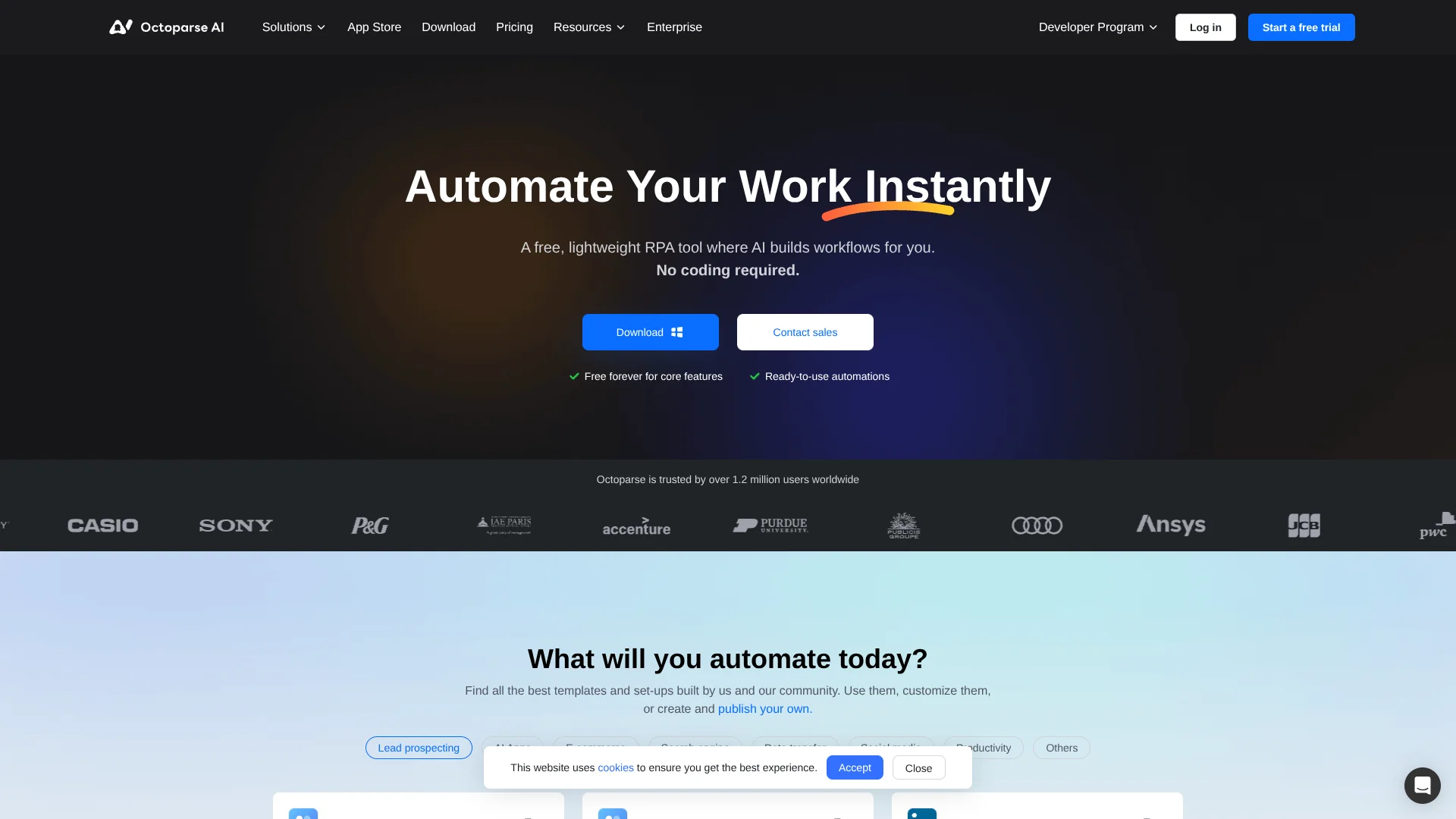
Turn repetitive browser tasks into automated workflows without coding.
Key Takeaways
- What it is
- Turn repetitive browser tasks into automated workflows without coding.
- Pricing
- Freemium · $29 per month · $69 per month
- Best for
- AI Copilot
- Workflow editor
- App Store
- Rating
- 4.0/5
What is Octoparse AI?
Octoparse AI turns plain-language instructions into workflows that can interact with websites, work with Excel, and process files. Its AI Copilot drafts and test-runs the steps, so people can automate repeat tasks without building each action by hand. The workflow editor also lets you inspect and adjust those steps.
A distinctive strength is that workflows can act through a browser, rather than relying only on a website’s API, which is a way for services to exchange data. For example, a workflow can collect webpage information, organize it in Excel, and enter it into another system. Time triggers and webhooks can run workflows automatically.
Octoparse AI suits people who repeat browser and spreadsheet tasks, including sales operations staff, researchers, and small teams. It runs on Windows, and AI Copilot does not yet handle desktop-interface automation or complex Google Workspace and Microsoft 365 Online documents. It is most useful when your workflow centers on web pages and local files.
Who is Using Octoparse AI?
Sales operations specialists
Lead collection workflows can gather webpage details and organize them for follow-up.
Market researchers
Web automation can collect information from pages and prepare it for spreadsheet analysis.
Administrative coordinators
Repeat browser and file tasks can be arranged into workflows with scheduled triggers.
Spreadsheet analysts
Excel and Google Sheets commands can move or process data within a larger workflow.
Uncommon Use Cases
OCR can read text from image sources; CAPTCHA commands can handle supported CAPTCHA task types.
Key Features
Rating Breakdown
Pricing Plans
Free
Free
- Unlimited basic usage
- First $5 in platform credits free, then pay as you go
Starter
$29 per month
- Includes one bot instance
- Includes webhooks and a shared workspace
- Standard support
Team
$69 per month
- $49 per month when billed annually
- Includes three bot instances and four organization seats
- 1-on-1 training and priority support
Enterprise
- Includes custom solutions
- Dedicated support
Which Octoparse AI plan should you pick?
Start with Free to try basic workflows, choose Starter for triggers and one bot instance, and move to Team when shared seats and more bot instances matter.
Free
Good for individuals exploring basic workflows and the App Store.
Starter
Good for users who need webhooks, a shared workspace, and one bot instance.
Team
Good for teams that need four organization seats, three bot instances, and priority support.
Enterprise
Good for larger organizations seeking custom solutions and dedicated support.
Octoparse AI Use Cases
Collect webpage leads
A web workflow gathers selected contact or organization details from pages and passes them into later steps.
Outcome: Web information organized for sales or research.
Process spreadsheet records
Excel or Google Sheets data can feed checks, calculations, or follow-up actions in a workflow.
Outcome: Less manual handling of repeated spreadsheet tasks.
Automate recurring browser tasks
Time triggers can start supported workflows on a schedule, while webhooks can start them from a request.
Outcome: Routine workflows run on a schedule or API request.
Extract text from images
OCR commands recognize text from supported image sources for use in later workflow steps.
Outcome: Image text made available to the workflow.
Add AI text processing
AI commands can summarize, translate, analyze sentiment, or extract information from text.
Outcome: Text processed within an automation workflow.
Workflow Ideas with Octoparse AI
Gather webpage details into a spreadsheet
- 1Describe the webpage information to collect in AI Copilot.
- 2Review and test the drafted browser workflow.
- 3Pass the collected fields into Excel or Google Sheets.
Run a recurring browser task
- 1Build and test the browser workflow in the workflow editor.
- 2Set a time trigger or configure a webhook.
- 3Review execution logs after runs.
Extract and process image text
- 1Choose an image source for the OCR command.
- 2Recognize the text and pass it to an AI text command.
- 3Save or use the processed result in a later workflow step.
How Octoparse AI fits into your stack
Windows workflow editor
The desktop client is where you create, test, and manage automation workflows.
Browser automation
Workflows can interact with web pages through the built-in browser or supported Chrome and Edge setups.
Spreadsheets and files
Commands work with local files, Excel, and Google Sheets, allowing data to move through a workflow.
Triggers and bots
Paid plans add time triggers, webhooks, and bot instances for scheduled or remotely triggered execution.
App Store
Ready-made apps and tutorial workflows provide starting points for common automation tasks.
Pros
- +Plain-language workflow drafts: AI Copilot can build and test a workflow from a task description.
- +Webpage interaction: Automates browser actions on sites that do not offer an API.
- +Ready-made apps: The App Store includes examples and workflows that can be adapted.
- +Free core plan: The Free plan includes basic usage and $5 in platform credits.
Cons
- −Windows-only setup: The workflow editor and bot require a Windows computer.
- −Prompt refinement: Copilot-generated workflows may take a few rounds of review and adjustment.
- −Separate usage charges: Some AI commands and platform resources are billed beyond the subscription.
Limitations & when to consider alternatives
Known limitations
- Windows requirement. The official setup guide says Octoparse AI is currently available exclusively for Windows.
- AI Copilot scope. Copilot does not yet support desktop UI automation or complex online documents such as Google Workspace and Microsoft 365 Online.
- Manual website login. For workflows that need a website login, the help center says to complete the login manually before starting automation.
- One workflow per instance. Each Workflow Editor or Bot Agent instance runs one workflow at a time; parallel runs require multiple devices or bot instances.
Look elsewhere when
- You need a macOS or Linux workflow editor.
- You need AI Copilot to automate desktop interfaces or complex online documents.
- Your website workflow must complete login steps automatically.
How to Use Octoparse AI
- 1
Install the Windows client
Download the Octoparse AI client to a Windows computer; the tool is not web-based.
- 2
Start a new app
Open the workflow editor and choose AI Copilot to begin describing the task.
- 3
Describe the goal
Name the website or file, the information to handle, and the actions the workflow should take.
- 4
Review and test
Check the workflow outline, run its test, and refine steps through Copilot if needed.
- 5
Apply and run
Save the reviewed workflow, then run it locally or configure an available trigger on a paid plan.
- 6
Check results and usage
Review execution logs and monitor platform credits, since some AI resources have usage charges.
Who is Octoparse AI For?
People new to automation
AI Copilot can turn a plain-language task description into a workflow to review and test.
Small teams and businesses
Shared workspaces, webhook triggers, and bot instances support recurring team workflows.
Web data users
Browser actions can collect information from webpages and pass it into later workflow steps.
Octoparse users
Built-in commands can interact with Octoparse tasks and their collected data.
Frequently Asked Questions
Does Octoparse AI have a free plan?
Yes. The Free plan includes basic usage and $5 in platform credits; additional platform usage is pay as you go.
How much does Octoparse AI cost?
Starter is $29 per month, and Team is $69 billed monthly or $49 per month billed annually. Enterprise pricing is available by contacting sales.
What operating system does Octoparse AI support?
The official setup guide lists Windows as the supported operating system.
Can Octoparse AI connect to Google Sheets?
Yes. It has commands to read and write Google Sheets data, though setup requires Google OAuth credentials.
Can AI Copilot automate desktop apps?
Not currently. The help center says Copilot focuses on web, Excel, and system automation, and does not yet support desktop UI automation.
Community reviews
Be the first to share your experience.
Sign in to leave a review for Octoparse AI.
Octoparse AI Alternatives
Looking for alternatives to Octoparse AI? Here are similar tools in the same category: