
PDF Editor
AI-enhanced PDF editing with comprehensive, secure online tools.
Key Takeaways
- What it is
- AI-enhanced PDF editing with comprehensive, secure online tools.
- Pricing
- $6 per month · $4 per month (billed annually) · $99
- Best for
- AI-Powered Editing
- Comprehensive Editing Tools
- Secure Processing
- Rating
- 4.6/5
What is PDF Editor?
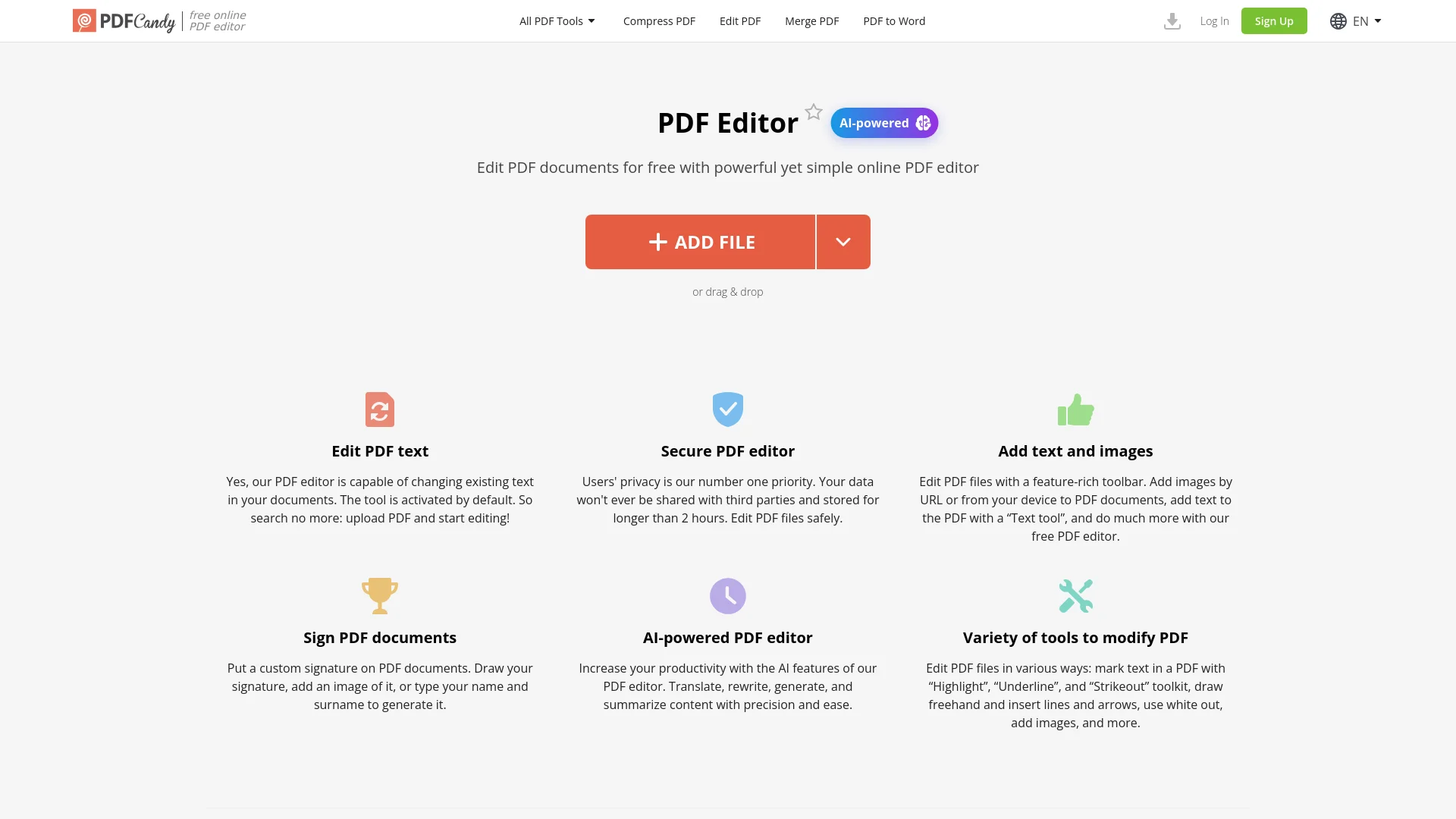
The PDF Editor revolutionizes the way we interact with PDF documents, offering a comprehensive suite of editing tools powered by artificial intelligence. Designed for both individuals and professionals, this tool simplifies the complex task of editing PDFs, making it accessible and efficient for users across various sectors. Whether you need to edit text, add images, or sign documents, this online editor provides a seamless experience with its intuitive interface and robust features.
The PDF Editor stands out with its AI-driven capabilities, offering users the ability to perform complex editing tasks such as content translation and summarization with ease. Its emphasis on security and privacy, combined with a user-friendly interface, makes it a preferred choice for those looking to manage PDF documents effectively.
The PDF Editor excels in providing a robust and secure platform for editing PDF documents. Its AI-powered features and user-friendly interface make it an essential tool for professionals and individuals alike. The ability to perform complex editing tasks with precision and ease offers an unmatched advantage in the realm of PDF management.
Who is Using PDF Editor?
Small Business Owners
Utilizing the tool for managing and editing business documents efficiently.
Freelancers
Employing the editor for quick and easy document modifications without additional software.
Students and Educators
Leveraging the tool for academic purposes such as annotating and editing research papers.
Legal Professionals
Using the editor for secure document handling and editing in legal settings.
Uncommon Use Cases
Adopted by artists for creating digital portfolios; used by archivists for preserving and annotating digital documents.
Key Features
Rating Breakdown
Pricing Plans
Web Monthly
$6 per month
- Access to PDF Editor with no hourly limits and increased file size per task
Desktop + Web Yearly
$4 per month (billed annually)
- Both desktop and web access with high-priority processing
Desktop + Web Lifetime
$99
- One-time payment for lifetime access to both desktop and web services
Which PDF Editor plan should you pick?
Start with Web + Desktop FREE for occasional work, choose Web Monthly for heavier browser use, or upgrade to Desktop + Web Yearly or Desktop + Web Lifetime for unrestricted or offline Windows workflows.
Web + Desktop FREE
Good for occasional users who need core web and desktop PDF tools with limited usage.
Web Monthly
Good for browser users who need no hourly limits, larger files up to 500 MB, and priority processing.
Desktop + Web Yearly
Good for users who need both online access and the Windows desktop app with no hourly limits, larger files, and priority processing.
Desktop + Web Lifetime
Good for users who want permanent access to a specific PDF Candy Desktop version with a one-time payment.
PDF Editor Use Cases
Edit PDF content
Erase or add text, insert images, draw shapes, annotate, highlight, sign, move elements, and add or rearrange pages.
Outcome: A revised PDF ready to download or share.
Convert scanned documents with OCR
Upload a scanned PDF, choose the recognition language, and run OCR.
Outcome: Editable and searchable text from image-based documents.
Prepare signed documents
Add a typed, drawn, or image-based signature and place it on one or more PDF pages.
Outcome: A signed PDF that can be downloaded, saved to cloud storage, or shared by link.
Organize PDF pages
Merge, split, rotate, delete, crop, or rearrange PDF pages.
Outcome: A cleaner document with the desired page structure.
Process multiple files
Use PDF Candy Desktop for batch conversion, merging, and other bulk PDF operations.
Outcome: Multiple files processed more efficiently in one operation.
Workflow Ideas with PDF Editor
Turn a scanned PDF into editable text
- 1Upload the scanned PDF to PDF OCR.
- 2Choose the document's recognition language.
- 3Start OCR and download the editable text output.
Edit and share a signed PDF
- 1Upload the document to the PDF editor or signing tool.
- 2Add text, annotations, images, or a typed, drawn, or uploaded signature.
- 3Download the result, save it to Google Drive or Dropbox, or generate a shareable link.
Batch-convert business documents
- 1Open PDF Candy Desktop on Windows.
- 2Add multiple files for conversion or merging.
- 3Run batch processing and export the resulting PDFs.
How PDF Editor fits into your stack
Browser
PDF Candy is primarily a browser-based PDF workspace for uploading, editing, annotating, signing, converting, and exporting documents. Its Chrome extension provides toolbar and context-menu access to the web tools.
Knowledge and files
Users can upload PDFs from their device or work directly from Google Drive and Dropbox. Processed documents can be downloaded or saved back to cloud storage.
Desktop
PDF Candy Desktop is a Windows application for offline PDF editing, conversion, OCR, organization, and batch processing.
Pros
- +Time Efficiency: Quickly edit and save PDFs without the need for complex software installations.
- +Cost-Effective: Offers a free tier with powerful features, making it accessible for budget-conscious users.
- +Cross-Platform Access: Available online, allowing access from any device with internet connectivity.
- +No Watermarks: Edits are clean and professional, with no added watermarks on the final documents.
Cons
- −Limited Integration: Currently, there are limited options for integrating with third-party applications.
- −Processing Limits: File size for tasks is capped, which may require upgrades for larger documents.
Limitations & when to consider alternatives
Known limitations
- Free-plan usage limits. The free plan has page and hourly restrictions, limited file sizes, no batch processing, and an operation limit in PDF Candy Desktop.
- Uploaded files expire quickly. Uploaded files and processed output are automatically deleted after two hours.
- Desktop app is Windows-only. PDF Candy Desktop is documented for Windows 7, 8, 8.1, 10, and 11.
- OCR may need manual correction. Extremely blurry text may require manual correction after recognition.
- Lifetime license excludes major upgrades. The lifetime license covers a specific software version and its minor updates, but not future major upgrades.
Look elsewhere when
- You need a native iOS or Android app.
- You need a developer API.
- You need SSO or enterprise identity management.
- You need shared workspaces with user roles and invitations.
How to Use PDF Editor
- 1
Open the PDF Editor
Use the browser-based editor from PDF Candy, or install PDF Candy Desktop on Windows for offline work.
- 2
Upload or select a file
Choose a local document or drag and drop it into the editor; supported tools also accept files from Google Drive or Dropbox.
- 3
Make document changes
Add or erase text, insert images, annotate, highlight, draw, sign, move elements, or add and rearrange pages.
- 4
Use OCR for scans
For image-based PDFs, open PDF OCR, upload the file, choose a recognition language, and start processing.
- 5
Export or share
Download the finished PDF, save it to Google Drive or Dropbox, or generate a shareable link where supported.
- 6
Upgrade when limits interfere
Choose Web Monthly, Desktop + Web Yearly, or Desktop + Web Lifetime when you need higher limits, priority processing, batch work, or offline Windows access.
Who is PDF Editor For?
Students
Use OCR, editing, annotations, conversion, and organization tools for assignments, study materials, and scanned documents.
Researchers
Convert scanned papers into searchable text and annotate or highlight important passages.
Professionals
Edit, convert, sign, compress, organize, and share business documents from a browser or Windows desktop.
Businesses and teams
Handle reports, contracts, proposals, employee handbooks, and other recurring PDF tasks with batch processing and cloud storage connections.
Teachers
Use PDF editing, OCR, annotations, and conversion tools for educational documents and classroom materials.
Frequently Asked Questions
Can I use PDF Candy without an account?
Yes. All tools are available without registration, although usage is limited until you sign up or subscribe.
What does the free plan include?
The Web + Desktop FREE plan costs $0 per month and includes most features with page, hourly, file-size, batch-processing, and desktop-operation limits.
How long are uploaded files stored?
Uploaded files and processed output are automatically deleted after two hours.
What does PDF Candy Desktop support?
The Windows desktop application provides 35+ PDF tools, offline processing, editing, conversion, OCR, and batch processing.
Which languages does PDF OCR support?
PDF OCR supports 19 languages, including English, German, French, Spanish, Chinese, Japanese, Korean, Arabic, and Russian.
Are uploaded files encrypted?
PDF Candy says files are transferred using HTTPS with TLS/SSL and protected with 256-bit AES encryption during upload, processing, and storage.
Community reviews
Be the first to share your experience.
Sign in to leave a review for PDF Editor.
PDF Editor Alternatives
Looking for alternatives to PDF Editor? Here are similar tools in the same category:
Learn to Master PDF Editor
With Skill Leap courses
Get in-depth training on PDF Editor and 50+ other AI tools with our expert-led video courses.
Start 7-Day Free Trial