
VoiceAppear
Dictate polished text into any desktop app.
Key Takeaways
- What it is
- Dictate polished text into any desktop app.
- Pricing
- Freemium
- Best for
- System-wide dictation
- AI autocorrect and smart punctuation
- Custom vocabulary and snippets
- Rating
- 4.5/5
What is VoiceAppear?
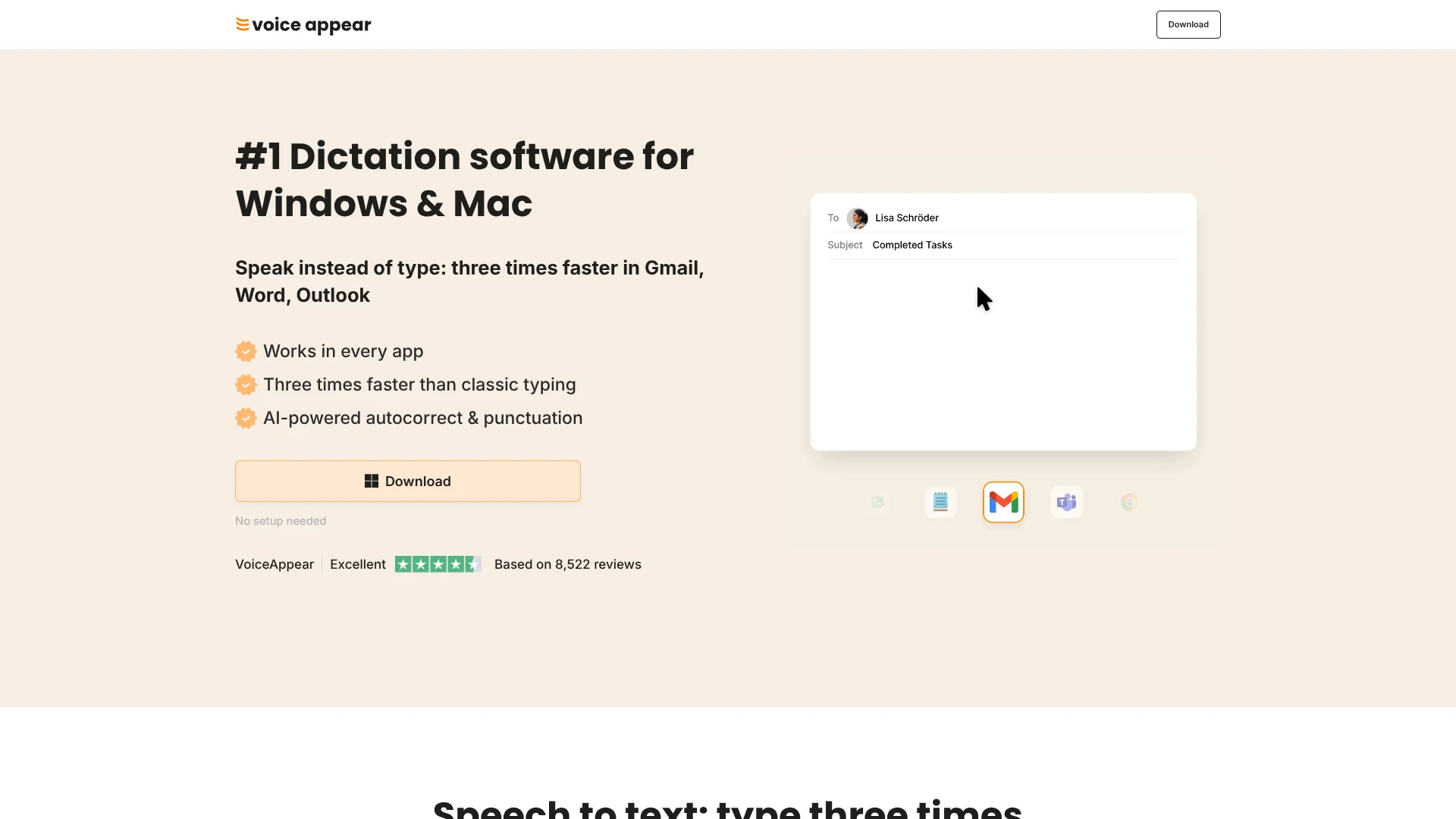
VoiceAppear: Dictation everywhere with AI auto correct is desktop dictation software for Windows and Mac that turns speech into text inside any app. It focuses on speed, accuracy, and AI powered autocorrect so that emails, documents, chat messages, and even prompts can be dictated up to three times faster than classic typing. The tool automatically adds punctuation, fixes wording on the fly, and adapts to the writing style of the user while keeping security and privacy controls at enterprise level.
VoiceAppear stands out through its combination of everywhere-on-the-desktop dictation, AI based autocorrect that cleans up filler words and mid sentence changes, and a strong privacy story where voice data is never stored or reused. Its focus on German plus more than 100 additional languages, automatic punctuation, and writing style adaptation inside different apps gives it a polished, natural feel. Add SOC 2 Type II and HIPAA readiness, and it becomes unusually attractive for privacy sensitive teams that still want modern AI speech recognition.
VoiceAppear: Dictation everywhere with AI auto correct delivers fast, accurate speech to text inside any desktop app, trimming email time and long form writing effort without demanding complex setup. Its AI autocorrect, custom vocabulary, and formatting automation help users stay focused on ideas instead of keystrokes, while strict privacy rules and EU based processing reassure security conscious organizations. For professionals who spend much of the day writing and want a practical, easy upgrade from built in dictation tools, VoiceAppear offers a polished, surprisingly addictive alternative to the keyboard.
Who is Using VoiceAppear?
Freelancers and consultants
Drafting client emails, proposals, and reports at speed without fighting the keyboard.
Team leaders and managers
Handling status updates, performance reviews, and longer communications while staying in the flow of thought.
Remote and hybrid workers
Dictating messages in tools like Teams, Slack, and email during packed meeting days.
Authors and content creators
Getting first drafts of articles, scripts, and outlines down quickly before refining by hand.
Uncommon Use Cases
Used by clinicians or medical admins in HIPAA-ready setups to dictate notes, and adopted by open-plan office staff who quietly whisper into headsets so they do not disturb colleagues.
Key Features
Rating Breakdown
Pricing Plans
Free Trial
Free
- Includes full access to all Voice Appear features with no restrictions during the trial period
Paid Subscription
- Required after the 14-day trial to continue using Voice Appear
- Billed in advance for the selected subscription period
Which VoiceAppear plan should you pick?
Start with Free to test core dictation; upgrade to Silver or Gold when you need paid features or higher usage.
Free
Good for users who need the core dictation functionality at no cost.
Silver
Good for individual users who need the standard paid feature set for regular dictation.
Gold
Good for users who need the highest paid usage tier.
VoiceAppear Use Cases
Dictate emails
Speak directly into an email field while VoiceAppear inserts cleaned-up text.
Outcome: Faster email composition.
Compose documents
Use the keyboard shortcut while a document editor is focused.
Outcome: Natural speech becomes formatted document text.
Write messages
Dictate chat and messaging content in the active text field.
Outcome: Messages are produced without switching applications.
Dictate in Claude Code
Speak commands, agent names, skills, filenames, and arguments while using Claude Code.
Outcome: Commands are formatted for Claude Code.
Use multilingual dictation
Speak in supported languages and switch languages during a sentence.
Outcome: Multilingual speech is converted into text automatically.
Workflow Ideas with VoiceAppear
Push-to-talk writing
- 1Click into an email, document, message, or other text field.
- 2Hold the VoiceAppear shortcut and speak naturally.
- 3Release the shortcut to insert cleaned-up text.
Hands-free dictation
- 1Start dictation with the configured shortcut.
- 2Switch to hands-free mode while continuing to speak.
- 3Stop the session when the full passage is complete.
Claude Code command dictation
- 1Focus the Claude Code input.
- 2Dictate the command, agent, skill, filename, and arguments.
- 3Send the formatted command in Claude Code.
How VoiceAppear fits into your stack
Browser
The Chrome extension lets users dictate into text fields on websites such as Gmail, Google Docs, ChatGPT, Claude, and LinkedIn.
Desktop / IDE
The Windows and Mac desktop app runs system-wide and types dictated text wherever the cursor is, including development tools such as Claude Code.
Docs and writing
VoiceAppear supports dictation into emails, documents, messages, and other application text fields, with automatic cleanup, punctuation, and formatting.
Pros
- +Major time savings: Speaking is significantly faster than typing, helping heavy writers clear inboxes and reports quickly.
- +Less physical strain: Reduces hand and wrist fatigue for users who normally type all day.
- +Strong privacy posture: No retention of voice inputs, end-to-end encryption, and strict compliance standards.
- +Zero-friction setup: Quick installation, no extra hardware required, and a simple hotkey driven workflow.
Cons
- −Requires internet connectivity: Speech recognition runs on remote servers, so offline dictation is not supported.
- −Desktop only: Currently focused on Windows and Mac, with no native mobile or browser extension experience.
- −Specialist terminology variance: Very niche languages or Latin-heavy text may need more manual review than common business writing.
Limitations & when to consider alternatives
Known limitations
- Desktop-focused product. The official product description centers on Windows and Mac desktop applications.
- Internet dependency. The changelog describes recovery from short internet dropouts, indicating that connectivity is involved in transcription.
- Transcription is not guaranteed error-free. The terms state that transcription may contain errors and may not be uninterrupted.
- Paid plans renew automatically. Paid subscriptions renew on the selected monthly or yearly billing cycle until cancelled.
Look elsewhere when
- You need a native mobile application.
- You need a documented developer API.
- You need shared workspaces or multi-user collaboration.
How to Use VoiceAppear
- 1
Download the desktop app
Install VoiceAppear for Windows or Mac so it can work system-wide.
- 2
Configure access
Complete setup, select a microphone if needed, and choose a keyboard shortcut.
- 3
Focus a text field
Click into an email, document, message, browser field, or supported application.
- 4
Dictate
Hold the shortcut and speak; VoiceAppear transcribes continuously and cleans up the wording.
- 5
Release or stop
Release the shortcut or stop hands-free mode to insert the completed text.
- 6
Customize vocabulary and style
Add names and jargon to custom vocabulary and adjust formatting styles for different application contexts.
Who is VoiceAppear For?
Writers
Dictate drafts and other written content directly into the application being used.
Developers
Dictate text, commands, filenames, and other content while working across development tools.
Students
Use voice input to compose text more quickly in documents and other applications.
Professionals
Create emails, documents, messages, and other workplace text by voice.
Frequently Asked Questions
What is VoiceAppear?
VoiceAppear is a Windows and Mac desktop app that converts speech into typed text wherever the cursor is located.
How much does it cost?
Plans include a free tier, while paid plans start at $8.99 monthly or $5.83 monthly when billed yearly. Paid features also have a 14-day trial.
Which languages are supported?
VoiceAppear supports more than 90 languages and can switch languages mid-sentence.
Does it work in every app?
Yes. It types wherever the cursor is, including applications, browsers, and text fields.
Is my voice data private?
The site says audio and transcripts are not stored or shared and are discarded after the text appears.
How can I use speech-to-text?
Download VoiceAppear, hold the configured shortcut, speak, and release it to insert the text.
Community reviews
Be the first to share your experience.
Sign in to leave a review for VoiceAppear.
VoiceAppear Alternatives
Looking for alternatives to VoiceAppear? Here are similar tools in the same category:
Learn to Master VoiceAppear
With Skill Leap courses
Get in-depth training on VoiceAppear and 50+ other AI tools with our expert-led video courses.
Start 7-Day Free Trial