Workflow
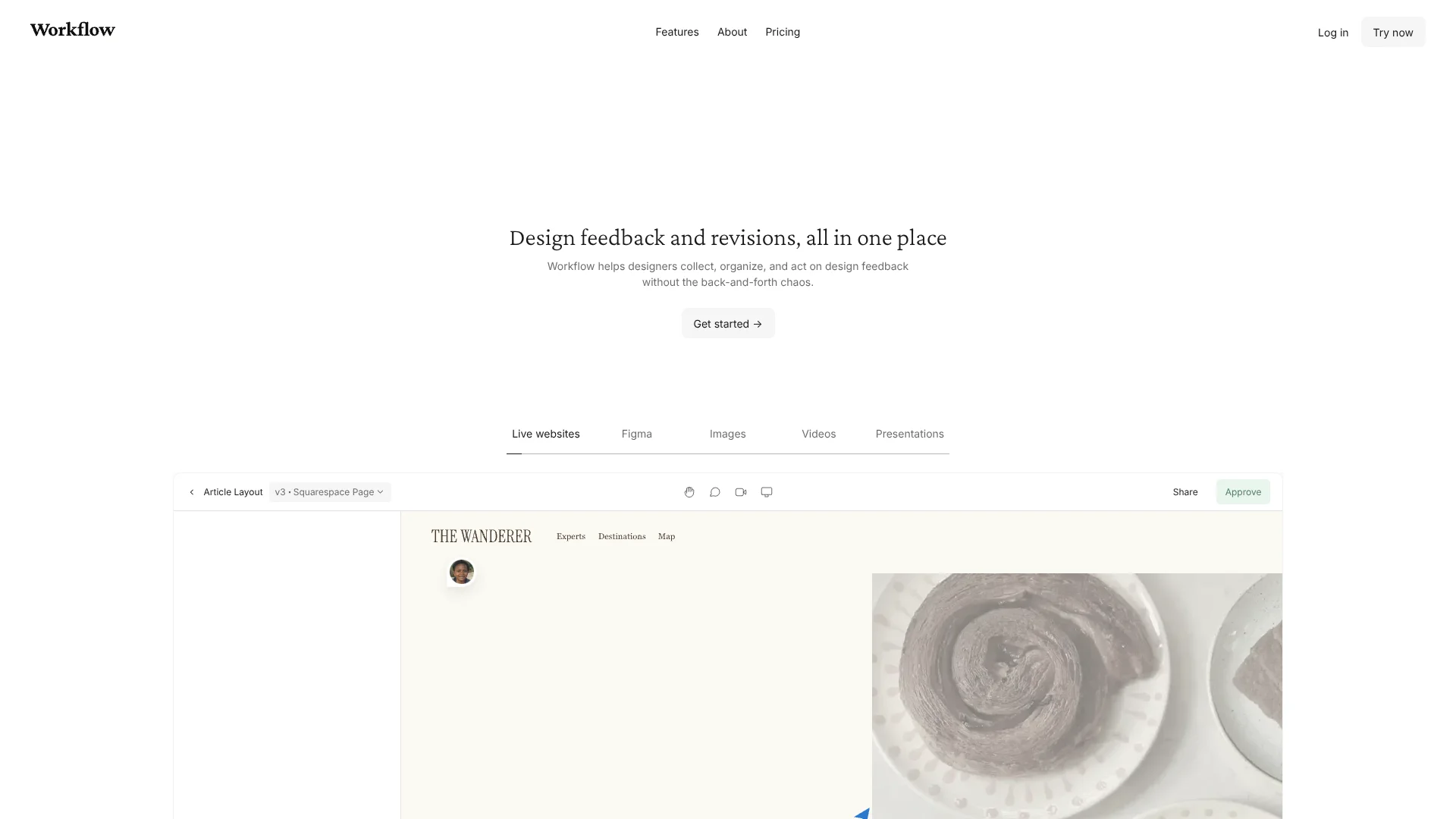
Keep client feedback pinned to live websites and creative designs.
Key Takeaways
- What it is
- Keep client feedback pinned to live websites and creative designs.
- Pricing
- $20 per seat per month
- Best for
- Workflow AI Checks
- Live website comments
- Figma integration
- Rating
- 4.2/5
What is Workflow?
Workflow gives designers a shared place to collect client feedback on live websites, Figma designs, videos, PDFs, and other creative work. Comments stay attached to the relevant page or spot on a design, so a team can track revisions without piecing together notes from email and chat. Its AI checks can scan supported designs and images for text issues such as typos and grammar errors.
A notable feature is that Workflow’s AI checks can run on uploaded design files and images, then flag potential text problems directly on the work being reviewed. Designers can also add their own checks, such as looking for a particular brand voice issue.
Freelance designers, small agencies, and creative teams that need client approvals are the clearest fit. Workflow is less suited to reviewing single-page web apps, which it says it does not support, so its strongest use is feedback on websites and creative assets rather than app testing.
Who is Using Workflow?
Web designers
Client comments pinned to live pages make it easier to turn feedback into specific site revisions.
UX designers
Figma frame reviews and synced comments help keep design discussions close to the work.
Creative directors
AI checks can flag wording issues before a design is sent for client approval.
Project managers
A Kanban board and version history help track review status across active creative projects.
Uncommon Use Cases
Review spreadsheet and document content after Workflow converts it for viewing; send feedback on video drafts with recorded walkthroughs.
Key Features
Rating Breakdown
Pricing Plans
Standard Plan
$20 per seat per month
- $16.00 per seat per month with yearly billing; the pricing page says this saves 20%.
- Guests and clients, and teammates who do not add creative work, can collaborate for free.
- Includes unlimited uploads, unlimited comment-only users and reviewers, video feedback, a Kanban board view, and client portals.
Which Workflow plan should you pick?
Start with the free project access to try client reviews, then choose Standard if you need to start new projects or add more creative seats.
Standard Plan
For solo designers and small agencies that need unlimited uploads, video feedback, a Kanban board, and client portals.
Workflow Use Cases
Website review
Client feedback stays pinned to the relevant part of a live site, helping designers see what needs changing.
Outcome: More specific revision notes and a clearer approval process.
AI proofreading for designs
Workflow AI Checks scan supported design files and images for text problems before the client review.
Outcome: Catch potential wording issues before feedback rounds.
Figma design handoff
Selected frames and comments move between Figma and Workflow so feedback remains tied to the design.
Outcome: Design comments stay connected to the relevant Figma work.
Video draft review
Reviewers can comment on a video or record a walkthrough to explain their feedback.
Outcome: Video feedback is easier to understand and act on.
Client sign-off
A client can mark the latest version approved instead of leaving the team to infer approval from a message.
Outcome: A clear approval record on the project.
Workflow Ideas with Workflow
Prepare a website for client review
- 1Add the live website to a Workflow task.
- 2Invite the client with a share link.
- 3Resolve pinned comments and request approval on the revised version.
Check design copy before sharing
- 1Add a supported image or design file to a task.
- 2Run Workflow AI Checks for text issues.
- 3Review flagged items and share the updated design.
Collect Figma feedback
- 1Send selected Figma frames to Workflow with its Figma plugin.
- 2Gather comments from reviewers in the task.
- 3Sync relevant comments back to the Figma file.
How Workflow fits into your stack
Live websites
Workflow lets reviewers comment directly on websites, including sites built with platforms such as Squarespace, Webflow, Framer, WordPress, Lovable, and v0.
Design and creative files
Upload visual assets for review, or use the Figma plugin to send selected frames and sync comments.
Team communication
Slack can deliver Workflow feedback notifications to team members, and Zapier is available in private beta for event-triggered automations.
Desktop review
A downloadable desktop app provides access to conversations and notifications outside the browser.
Browser design checks
Workflow's Pixel Perfect Chrome extension overlays a design image on a live webpage to help spot visual mismatches.
Pros
- +Design-aware AI checks: Flags text issues on supported design files and images, not only in plain documents.
- +Easy client reviews: Reviewers can leave comments from a shared link without creating an account.
- +Useful Figma handoff: Selected frames and feedback can move between Figma and Workflow.
- +Free reviewer access: Clients and comment-only teammates can participate without a paid creative seat.
Cons
- −Narrow AI scope: Its AI focuses on checking design content rather than broad writing or research tasks.
- −Seat-based cost: The Standard Plan is billed per creative seat, which can add up as more people need to upload work.
Limitations & when to consider alternatives
Known limitations
- Single-page web apps are unsupported. Workflow says it does not work on single-page applications or apps such as Google Docs.
- Video storage has a threshold. The pricing FAQ says video storage has a 100 GB limit, with each additional 100 GB costing $5.
- AI checks require supported creative files. The listed AI-check formats include PNG, JPG, GIF, WEBP, Figma, Sketch, Adobe XD, and PSD files.
- Zapier is in private beta. The Zapier integration is not in Zapier's public app directory, and it currently supports Workflow triggers rather than creating Workflow items from other apps.
Look elsewhere when
- You need to test single-page web apps or app interfaces.
- You need a general-purpose AI tool for research, drafting, or coding.
- Your team needs an AI feature that generates or edits design files rather than reviewing them.
How to Use Workflow
- 1
Start with a review task
Create a project for the client or workstream, then add a task for the website or creative asset being reviewed.
- 2
Add the work
Upload a supported file, add a live website, or send selected frames from Figma.
- 3
Run an AI check
For supported design files and images, open AI review to flag text-related issues before sharing.
- 4
Invite reviewers
Share a link so clients can leave comments without creating a Workflow account.
- 5
Revise and approve
Keep comments with the task, add a new version as the work changes, and collect approval on the latest version.
Who is Workflow For?
Freelance designers
A solo designer can share work with clients and keep their feedback and approvals attached to each project.
Design agencies
Small agencies can manage review rounds across client websites and creative files in one workspace.
Creative teams
Design teams can gather comments on visual work and use AI checks to catch text issues before review.
Client reviewers
Clients can review and comment on shared work without setting up a Workflow account.
Frequently Asked Questions
Does Workflow have a free plan?
Workflow lets you create projects and invite reviewers for free. After 14 days, you can keep collaborating on those projects, but need to upgrade to start something new.
How much does Workflow cost?
The Standard Plan is $20 per creative seat per month when billed monthly, or $16 per seat per month with yearly billing.
Do clients need a Workflow account to leave feedback?
No. Clients can open a shared link and leave feedback without creating a Workflow account.
What can Workflow AI check?
AI Checks scan supported images and design files for potential text issues, including spelling, grammar, clarity, biased language, and brand voice consistency.
Does Workflow integrate with Figma?
Yes. Its Figma plugin can send selected frames to Workflow, and comments on supported designs can sync back to Figma.
Community reviews
Be the first to share your experience.
Sign in to leave a review for Workflow.
Workflow Alternatives
Looking for alternatives to Workflow? Here are similar tools in the same category: