
Google AI Studio
Prototype Gemini-powered web and Android apps from natural-language prompts.
Watch Google AI Studio in Action
Key Takeaways
- What it is
- Prototype Gemini-powered web and Android apps from natural-language prompts.
- Pricing
- Freemium
- Best for
- Build Mode
- Prompt Playground
- Gemini API Code Export
- Rating
- 4.4/5
What is Google AI Studio?
Google AI Studio gives developers and technical teams a visual place to test Gemini models, tune prompts, inspect responses, and get code for an API integration. Its Build mode also turns natural-language descriptions into working web or Android app projects, making it useful for moving from an AI idea to a testable prototype.
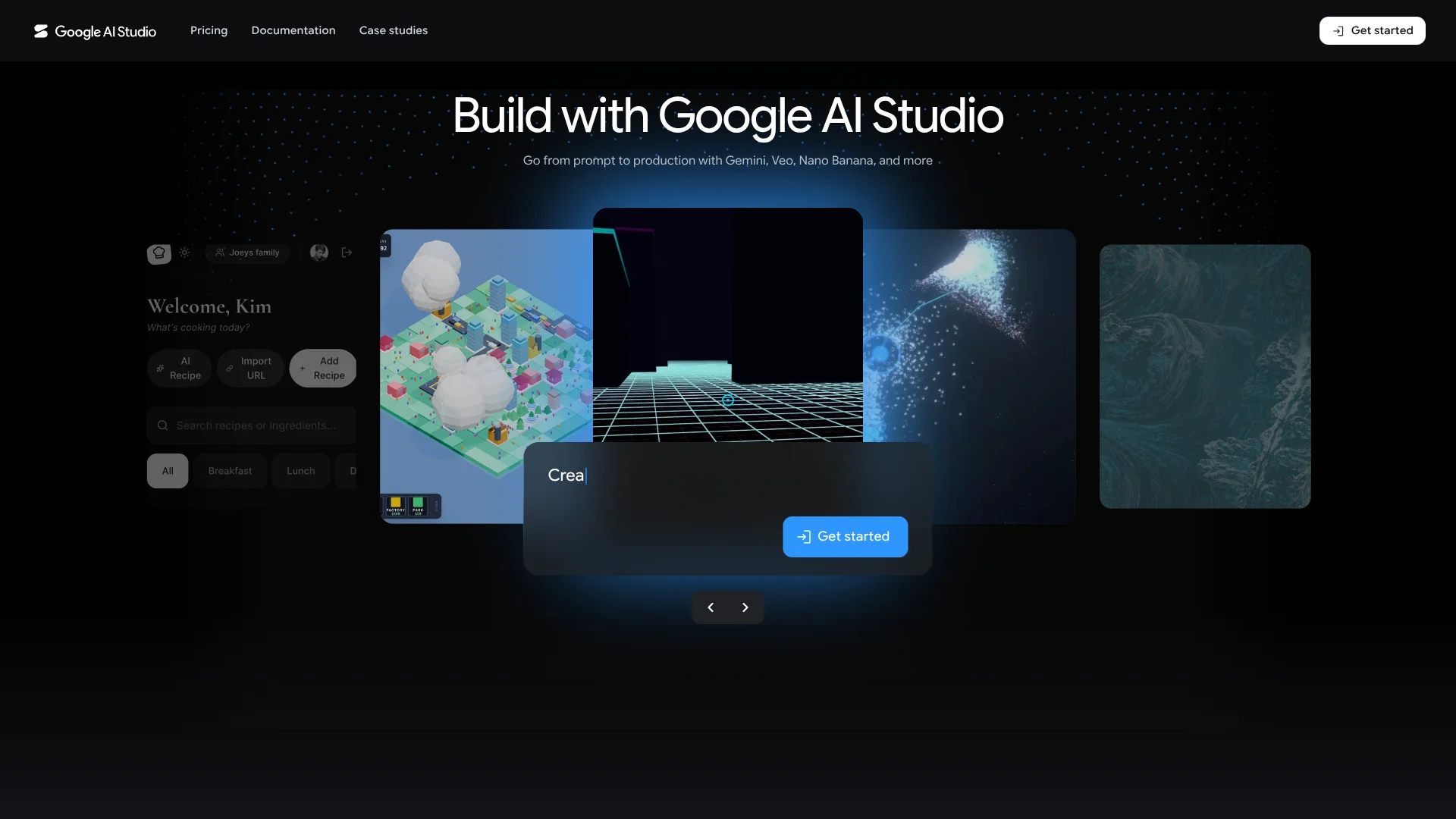
Build mode can generate a full-stack web app or native Android project from a prompt, then show a live preview while Gemini updates the code across multiple files.
It fits developers, product teams, and technically confident creators who want to evaluate Gemini before writing a larger application. It is less suitable for people seeking a polished consumer chatbot or a shared team workspace with detailed collaboration controls. Google AI Studio is strongest when the goal is to test Gemini behavior and turn a prompt into working application code.
Who is Using Google AI Studio?
Software developers
Generated code, API keys, GitHub import, and live previews shorten the path from a Gemini experiment to a working prototype.
Product managers
A prompt-based app preview makes early AI product ideas easier to demonstrate and discuss.
UX designers
Live app previews provide a quick way to explore interface ideas before a full engineering build.
Data and research teams
Code execution, file search, URL Context, and structured output support experiments with documents and data.
Technical educators
Prompt Gallery examples and API code generation provide concrete material for teaching Gemini development.
Uncommon Use Cases
Testing browser-based AI workflows with Computer Use; creating small Android utilities from natural-language specifications
Key Features
Rating Breakdown
Pricing Plans
Free Tier
Free
- Available for an active project or free trial
- Access to selected models and model-specific rate limits
- AI Studio use remains free unless a paid API key is linked
Which Google AI Studio plan should you pick?
Start with the Free Tier for prompt testing and small prototypes, then enable the Paid Tier when you need higher limits, paid models, or production API usage.
Free Tier
Good for learning Gemini, testing prompts, and building early prototypes within model-specific rate limits.
Paid Tier
Good for applications that need higher rate limits, paid models, paid tools, or more sustained API usage.
Google AI Studio Use Cases
AI app prototyping
A natural-language product idea becomes a web or Android project with generated files and a live preview.
Outcome: A testable prototype for early feedback.
Prompt evaluation
Different system instructions, model settings, and safety controls can be tested in the Playground.
Outcome: A better-understood prompt before API implementation.
Document and web research
File Search, URL Context, and Google Search let Gemini answer questions using selected sources.
Outcome: Responses grounded in supplied files or web content.
Structured AI output
Structured output and function calling help test responses that need a predictable format or an external action.
Outcome: Output that is easier to pass into application logic.
Code-assisted analysis
Code Execution lets Gemini write and run Python for calculations, transformations, and data analysis.
Outcome: More reliable results for tasks that benefit from executable code.
Workflow Ideas with Google AI Studio
From idea to app preview
- 1Describe the app in Build mode and choose a web or Android project.
- 2Review the generated code and live preview.
- 3Iterate through prompts or annotations, then export the project or connect GitHub.
From prompt to API call
- 1Create a chat or multimodal prompt in the Playground.
- 2Tune model settings, tools, and system instructions.
- 3Select Get code and adapt the generated request inside your application.
Grounded document analysis
- 1Add files or provide a URL for Gemini to inspect.
- 2Enable File Search or URL Context in Run settings.
- 3Test questions and structure the response for the target workflow.
How Google AI Studio fits into your stack
Model testing
The Playground sits at the front of an AI development workflow, where teams can compare Gemini models and prompt behavior before committing to application code.
Application development
Build mode creates a starting project with generated client and server code, giving developers something concrete to inspect and extend.
Files and web sources
File Search, URL Context, and Google Search provide source material for experiments that need more than the model's built-in knowledge.
Developer tools
GitHub import and sync support repository-based work, while exported code can move into a local code editor.
Deployment
Web apps can be deployed to Cloud Run from the Build mode workflow after review and testing.
Pros
- +Fast prototyping: Turns a plain-language app idea into a working project with a preview.
- +Model access: Provides a visual way to test Gemini models and multimodal prompts before coding.
- +Developer handoff: Generates starter code and API keys for moving a prototype into development.
- +Large context: Lets users explore Gemini models with context windows reaching 1 million tokens.
- +Useful tools: Adds Google Search, Maps, file search, URL reading, and code execution to model tests.
Cons
- −Developer focus: The interface assumes comfort with prompts, APIs, projects, and generated code.
- −Usage billing: Paid model use is metered by tokens and tool usage rather than covered by a flat subscription.
- −Production gap: Generated apps still need human review, testing, security work, and deployment decisions.
Limitations & when to consider alternatives
Known limitations
- Free-tier limits vary. Free access depends on the selected model and its rate limits, and higher limits require linking a billing account.
- Paid usage is metered. Paid-tier costs depend on input tokens, output tokens, cached tokens, and selected tools rather than a fixed monthly subscription.
- Generated code needs review. The generated application and code should be checked for correctness, security, and deployment readiness before production use.
- Regional and age requirements. Google AI Studio availability depends on supported regions, account verification, and an 18-plus age requirement.
Look elsewhere when
- You need a polished consumer chatbot with a broad end-user experience.
- You need a shared workspace with detailed roles, invitations, and team editing controls.
- Your team needs a fixed monthly subscription instead of token-based API billing.
- You need production-ready software without reviewing generated code.
How to Use Google AI Studio
- 1
Open the Playground
Start with a chat, multimodal, or other prompt type that matches the experiment you want to run.
- 2
Set the model behavior
Add system instructions and adjust model parameters, safety settings, and available tools in Run settings.
- 3
Add context
Attach supported files, URLs, or tool access when the response needs information beyond the prompt.
- 4
Test and refine
Run several examples, inspect the responses, and revise the prompt before treating the result as reliable.
- 5
Get implementation code
Select Get code to create a starting point for the Gemini API in a supported programming environment.
- 6
Build an app
Switch to Build mode when the goal is a working web or Android prototype rather than a prompt experiment.
Who is Google AI Studio For?
Developers
Gemini API access, generated code, and model controls help developers test ideas before building them into a larger application.
Product teams
Build mode offers a quick way to turn an AI product concept into something people can preview and evaluate.
App prototypers
People exploring web or Android app ideas can start with a description instead of an empty code editor.
Gemini API users
Teams evaluating Gemini models can compare prompts, tools, output formats, and usage before integrating an API.
Frequently Asked Questions
Is Google AI Studio free?
Yes. Google AI Studio has a Free Tier for selected models and rate limits. Paid use begins when you link a paid API key or enable billing for higher limits and paid features.
Does Google AI Studio have a monthly subscription?
Google AI Studio does not use a standard monthly app subscription. Gemini API and AI Studio usage can be billed according to model tokens, cached tokens, and tool usage.
Can Google AI Studio generate an app?
Yes. Build mode can create full-stack web apps and native Android projects from natural-language prompts, with generated code and a live preview.
Can I use Google AI Studio with GitHub?
Yes. Build mode can import a project from GitHub and support two-way synchronization between the repository and AI Studio.
Does Google AI Studio provide an API?
Yes. It creates Gemini API keys and includes a Get code flow for turning tested prompts into API requests.
What tools can Gemini use in AI Studio?
Available tools include Google Search, Google Maps, URL Context, File Search, Code Execution, Computer Use in preview, and function calling.
Part of the Google Gemini family

Google Gemini
View parent product
Community reviews
Be the first to share your experience.
Sign in to leave a review for Google AI Studio.
Google AI Studio Alternatives
Looking for alternatives to Google AI Studio? Here are similar tools in the same category:
Learn to Master Google AI Studio
With Skill Leap courses
Get in-depth training on Google AI Studio and 50+ other AI tools with our expert-led video courses.
Start 7-Day Free Trial